
Complete IT Solutions!

Computer & Hardware Upgrades Melbourne South-East

Computer & Hardware Upgrades in Melbourne’s South-East

Make Your Computer Faster, More Capable and More Useful

Computer Upgrades

All Brands

01 — Computer Hardware Upgrades That Start With Finding the Right SolutionComputer & Hardware Upgrades That Start With Finding the Right Solution

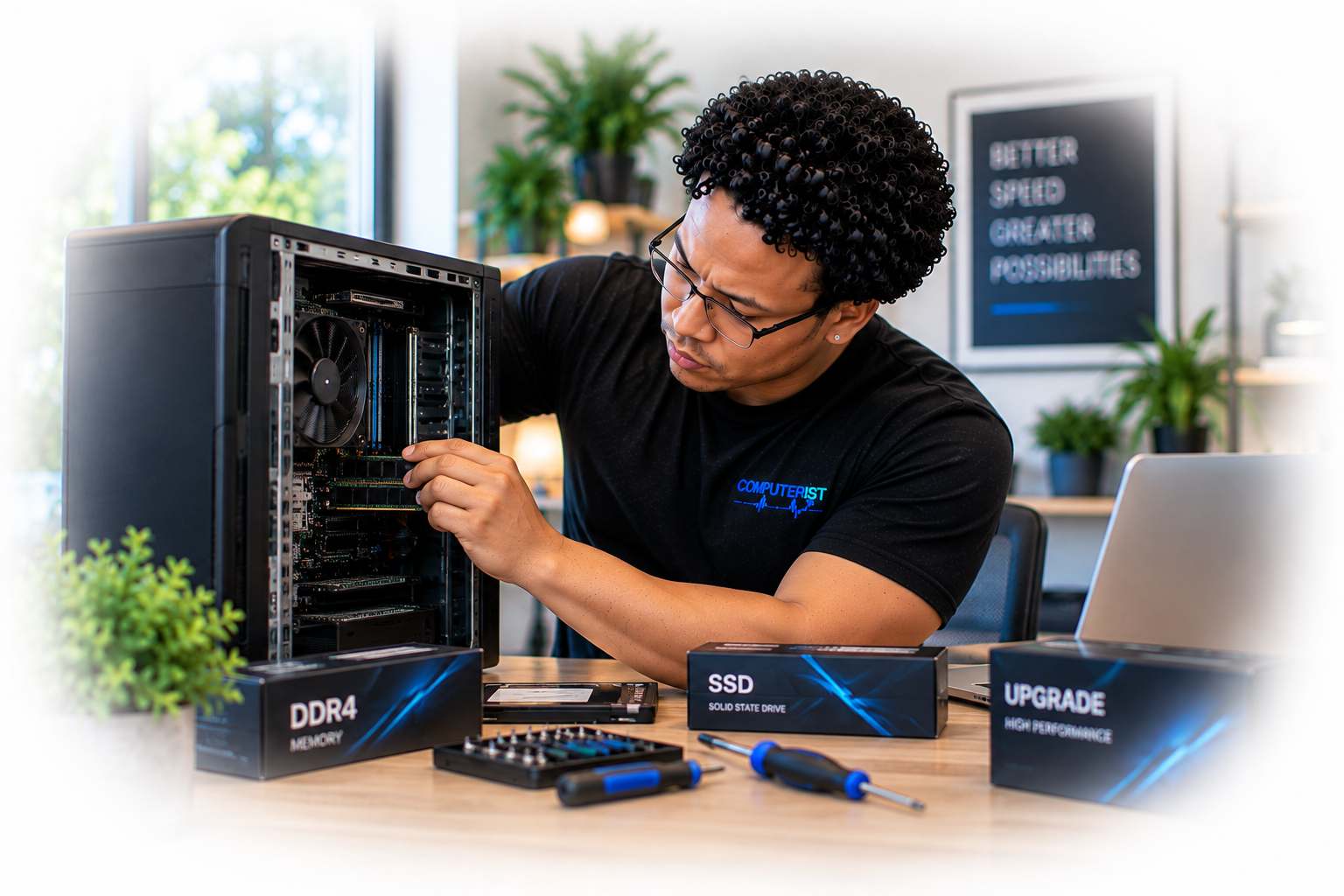
Computer technician assessing a computer and upgrade components to find the right hardware solution.

Computer & hardware upgrades should solve a real problem, not simply add new hardware. Computerist can assess your computer, identify what is limiting its performance and recommend practical upgrades based on what you actually need. Sometimes an SSD or memory upgrade is enough. Sometimes a larger hardware upgrade makes sense. And sometimes replacing the computer is the better option. Your computer doesn’t have to be replaced just because it has become slow or no longer does everything you need. In many cases, the right hardware upgrade can give an existing computer significantly more useful life. Computerist provides computer and hardware upgrade services for desktops, laptops and compatible systems across Melbourne’s south-east. Whether you need more storage, additional memory, a faster SSD, better graphics performance or simply want to understand whether upgrading your existing computer is worthwhile, we’ll assess the hardware and explain your options.

02 — Is Your Computer Getting Too SlowIs Your Computer Getting Too Slow?

A computer can gradually become less capable as your requirements change.

Perhaps: Computer technician diagnosing a slow computer with a customer in a modern home office.

dash 90 Windows takes too long to start

dash 90 Applications take ages to open

dash 90 You constantly run out of storage

dash 90 Your computer struggles with multiple applications

dash 90 Games no longer run well

dash 90 Photo or video editing has become frustrating

dash 90 Your laptop feels sluggish

dash 90 You need more space for files

dash 90 Your business applications are becoming demanding

The obvious solution might seem to be buying a new computer.

But sometimes an upgrade is all you need.

Not Every Upgrade Works With Every Computer

Before recommending an upgrade, we check compatibility, available expansion options, power requirements, physical space, existing hardware and the overall condition of the computer. An upgrade that looks good on paper isn’t useful if the rest of the system can’t support it.

03 — Repair Upgrade or ReplaceRepair, Upgrade or Replace? 

Computer technician assessing an older computer alongside hardware upgrade options.

This is one of the most useful questions we can help you answer.

Repair

If your existing computer has a fault, repairing the failed component may be the best option.

Upgrade

If the computer is fundamentally suitable for what you need, upgrading selected components may improve its performance and extend its useful life.

Replace

If the hardware has reached its practical limits, replacement may make more sense.

We don’t upgrade computers simply because we can.

We’ll consider the computer’s age, condition, compatibility, intended use and upgrade cost before recommending anything. The objective is to make the right investment, not the biggest one.

04 — SSD UpgradesSSD Upgrades

One of the most noticeable upgrades for many older computers is moving from a traditional mechanical hard drive to a suitable SSD.

An SSD can significantly improve everyday responsiveness, particularly when the existing computer is still using an ageing mechanical drive.

Potential improvements include: Computer technician installing an M.2 SSD into a laptop motherboard.

icons8 check mark Faster Windows startup

icons8 check mark Faster application loading

icons8 check mark Quicker file access

icons8 check mark Better general responsiveness

icons8 check mark Reduced waiting

icons8 check mark Improved everyday productivity

But an SSD isn’t automatically compatible with every computer.

We need to determine:

icons8 check mark Existing drive type

icons8 check mark Interface

icons8 check mark Physical format

icons8 check mark Motherboard compatibility

icons8 check mark Available connections

icons8 check mark Operating-system requirements

icons8 check mark Data migration requirements

We’ll check the system before recommending a particular drive. Microsoft explains the differences between SSD and HDD storage and how storage type can affect PC performance. See Microsoft Support — All about SSD, HDD and storage types

05 — RAM Memory UpgradesRAM & Memory Upgrades

Computer technician installing RAM modules into a desktop motherboard.

Insufficient memory can make a computer feel sluggish, particularly when you’re running multiple applications at once.

You may notice: 

icons8 check mark Applications becoming slow

icons8 check mark Excessive disk activity

icons8 check mark Browser tabs becoming difficult to manage

icons8 check mark Programs freezing

icons8 check mark Poor multitasking performance

A RAM upgrade can help where the computer supports additional or higher-capacity memory.

Before upgrading, we’ll check:

icons8 check mark Current RAM

icons8 check mark Maximum supported memory

icons8 check mark RAM generation

icons8 check mark Module configuration

icons8 check mark Available slots

icons8 check mark Operating-system limitations

icons8 check mark Compatibility

Adding memory simply because “more RAM is better” isn’t always the answer.

The right amount depends on how you use the computer.

06 — Laptop UpgradesLaptop Upgrades

Laptop upgrade options vary significantly between models.

Some laptops provide accessible memory and storage.

Others have components that are soldered or otherwise integrated into the motherboard.

Before recommending an upgrade, we’ll determine what your laptop actually allows.

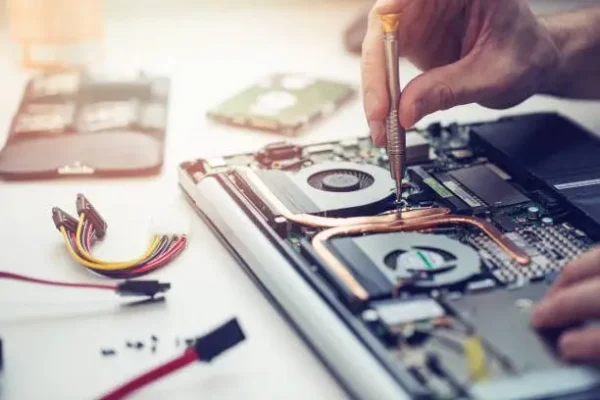
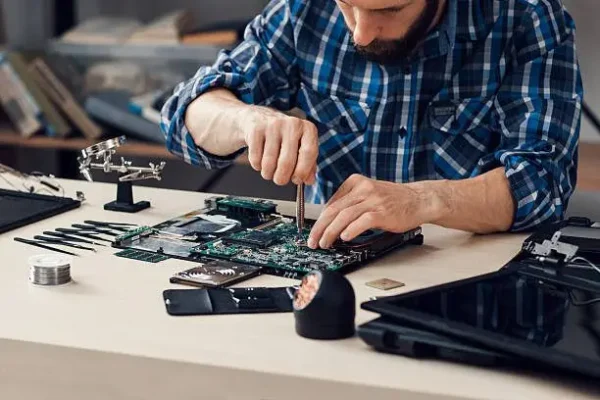
Possible upgrade options may include: Computer technician performing an internal hardware upgrade on an open laptop.

icons8 check mark SSD

icons8 check mark Storage

icons8 check mark RAM

icons8 check mark Battery

icons8 check mark Other compatible components

If an upgrade isn’t practical for your particular model, we’ll explain why rather than selling you something that won’t solve the problem.

07 — Desktop PC UpgradesDesktop PC Upgrades

Desktop computers generally provide more upgrade flexibility than laptops.

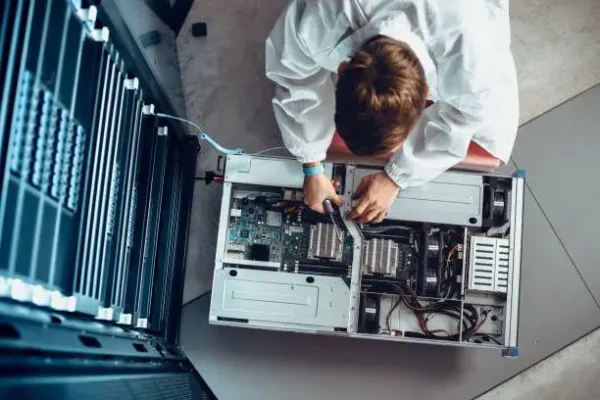
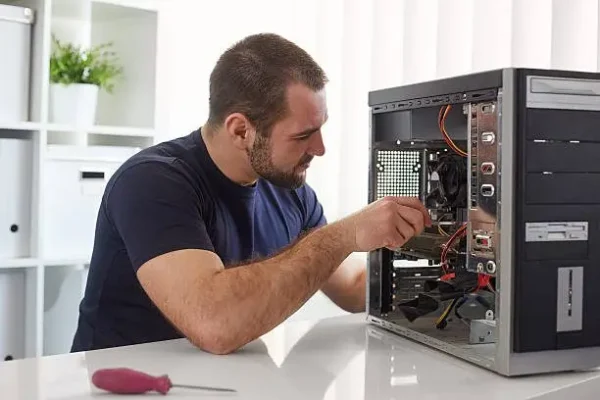
Depending on the system, we may be able to upgrade: Computer technician upgrading hardware inside an open desktop PC tower.

icons8 check mark SSD

icons8 check mark Hard drive

icons8 check mark RAM

icons8 check mark Graphics card

icons8 check mark CPU

icons8 check mark Cooling

icons8 check mark Power supply

icons8 check mark Additional storage

icons8 check mark Expansion cards

icons8 check mark Network hardware

The important thing is compatibility.

A faster component isn’t necessarily useful if another part of the system becomes the bottleneck.

08 — Graphics Card UpgradesGraphics Card Upgrades

A graphics card upgrade can be worthwhile for computers used for: Computer technician preparing a graphics card for installation in a desktop PC.

icons8 check mark Gaming

icons8 check mark Video editing

icons8 check mark 3D applications

icons8 check mark Graphic design

icons8 check mark CAD

icons8 check mark Rendering

icons8 check mark Certain AI and compute workloads

icons8 check mark Multiple high-resolution displays

But installing a more powerful GPU isn’t as simple as choosing the most expensive card that fits inside the case.

We need to consider:

icons8 check mark Power supply capacity

icons8 check mark Physical dimensions

icons8 check mark PCIe compatibility

icons8 check mark CPU limitations

icons8 check mark Cooling

icons8 check mark Case airflow

icons8 check mark Monitor requirements

icons8 check mark Intended applications

The goal is a balanced system.

A powerful graphics card paired with an unsuitable CPU, inadequate power supply or poor cooling may not deliver the improvement you expect.

09 — CPU UpgradesCPU Upgrades

Some desktop computers can benefit from a processor upgrade.

However, CPU upgrades are highly dependent on: Computer technician carefully positioning a CPU above a desktop motherboard socket.

icons8 check mark Motherboard

icons8 check mark Socket

icons8 check mark Chipset

icons8 check mark BIOS/firmware

icons8 check mark Cooling

icons8 check mark Power requirements

icons8 check mark Existing CPU

icons8 check mark Operating system

Sometimes replacing the CPU is worthwhile.

Sometimes the motherboard and processor should be upgraded together.

And sometimes the existing system simply isn’t worth investing in.

We’ll help determine which situation you’re dealing with.

10 — Storage UpgradesStorage Upgrades

Running out of storage is frustrating.

It can also affect how comfortably you can use your computer.

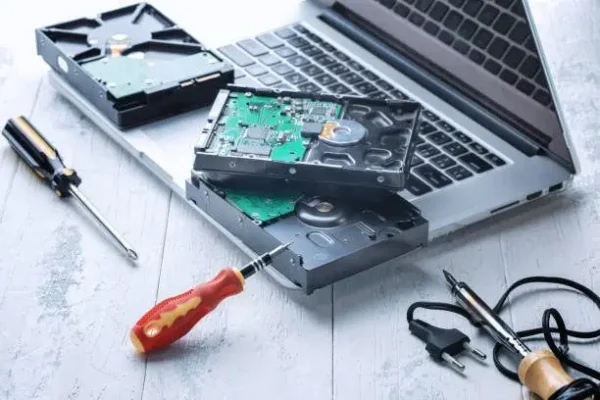
We can help assess options such as:  Computer technician assessing SSD and hard drive storage upgrade options.

icons8 check mark Larger SSD

icons8 check mark Additional SSD

icons8 check mark Secondary hard drive

icons8 check mark External storage

icons8 check mark Storage for backups

icons8 check mark Additional business storage

The correct approach depends on whether you’re looking for:

More capacity

or:

Better performance

or:

Both.

11 — Hard Drive to SSD MigrationHard Drive to SSD Migration

Computer technician managing a hard drive to SSD data migration.

If your existing computer uses a mechanical hard drive, moving to an SSD can provide a substantial improvement in responsiveness.

Where appropriate, we can consider migrating your existing Windows installation and data rather than starting from scratch.

The process needs to account for:

icons8 check mark Existing storage condition

icons8 check mark Data

icons8 check mark Operating system

icons8 check mark Partition layout

icons8 check mark Application configuration

icons8 check mark Boot configuration

icons8 check mark Drive capacity

If the existing drive is failing, however, data protection becomes more important than simply cloning it.

12 — Computer Upgrades Data MigrationComputer Upgrades & Data Migration

An upgrade often involves moving information from one storage device to another.

For example: Computer technician transferring customer data while upgrading computer hardware.

Old HDD → New SSD

or:

Smaller SSD → Larger SSD

Data migration may involve:

icons8 check mark Windows

icons8 check markApplications

icons8 check mark Documents 

icons8 check mark Photos

icons8 check mark User profiles

icons8 check mark Browser data

icons8 check mark Business files

icons8 check mark Configuration

The appropriate migration method depends on the condition and configuration of the existing system.

If important data is involved, we consider backup and recovery before beginning the migration.

13 — Graphics Gaming PC UpgradesGraphics & Gaming PC Upgrades

Gaming computers often benefit from carefully selected upgrades rather than replacing the entire system.

Depending on the computer, improvements may come from: Technician upgrading graphics and cooling hardware inside a high-performance gaming PC.

icons8 check mark Graphics card

icons8 check mark SSD

icons8 check mark RAM

icons8 check mark CPU

icons8 check mark Cooling

icons8 check mark Power supply

But gaming performance isn’t determined by one component alone.

We’ll consider the system as a whole and help identify where the biggest limitation actually is.

14 — Computer Upgrades for Creative ProfessionalsComputer Upgrades for Creative Professionals

Photographers, video editors, designers and other creative professionals often place substantially greater demands on their hardware.

Depending on your workload, useful improvements may include: Computer technician optimising a professional creative workstation.

icons8 check mark More RAM

icons8 check mark Faster storage

icons8 check mark Larger storage capacity

icons8 check mark Graphics performance

icons8 check mark CPU performance

icons8 check mark Better cooling

icons8 check mark Additional displays

The correct upgrade depends heavily on the software you use and the type of work you perform.

We’ll focus on the actual workload rather than simply recommending high-end components.

15 — Computer Upgrades for BusinessComputer Upgrades for Business

A business doesn’t always need to replace an entire fleet of computers when performance starts declining.

Depending on the hardware and business requirements, targeted upgrades may extend the useful life of existing devices.

Potential improvements can include:Computer technician upgrading a workstation in a modern small-business office.

icons8 check mark SSD upgrades

icons8 check mark RAM

icons8 check mark Storage capacity

icons8 check mark Network hardware

icons8 check mark Display connectivity

icons8 check mark Other compatible components

For businesses managing multiple devices, we can also help assess whether upgrading or replacing equipment makes better financial and operational sense.

16 — Can You Upgrade an Old ComputerCan You Upgrade an Old Computer?

Sometimes an older computer can be surprisingly capable after the right upgrade.

For example, a machine with: Computer technician inspecting an older desktop computer for possible upgrades.

computerist dot point An older CPU

computerist dot point Mechanical hard drive

computerist dot point Limited RAM

may feel dramatically better after a suitable SSD and memory upgrade.

But age isn’t the only consideration.

We also need to consider:

icons8 check mark Hardware compatibility

icons8 check mark Operating-system support

icons8 check mark Component availability

icons8 check mark Overall condition

icons8 check mark Power consumption

icons8 check mark Future requirements

icons8 check mark Total upgrade cost

There is a point where upgrading stops making financial sense.

We’ll tell you when you’ve reached it.

17 — When an Upgrade Isnt Worth ItWhen an Upgrade Isn’t Worth It

We won’t recommend an upgrade simply because technically it is possible.

Replacement may be more sensible when: Computer technician assessing an outdated desktop before recommending further upgrades.

icons8 check mark Multiple major components are failing

icons8 check mark The motherboard severely limits upgrades

icons8 check mark Required parts are difficult to obtain

icons8 check mark The computer cannot meet modern requirements

icons8 check mark Upgrade costs approach replacement cost

icons8 check mark The system is unsuitable for your intended workload

Sometimes the best advice is:

Don’t spend more money on this computer.

That’s useful advice too.

18 — Computer Compatibility AssessmentComputer Compatibility Assessment

Before purchasing hardware, check compatibility.

Depending on the upgrade, we may need to consider: Computer technician checking motherboard and hardware compatibility before an upgrade.

icons8 check mark Motherboard

What components does it support?

icons8 check mark CPU

Is the processor compatible with the motherboard?

icons8 check mark RAM

What type and capacity does the system support?

icons8 check mark Storage 

Does the system support SATA, NVMe or another interface?

icons8 check mark Power supply

Can it safely provide the required power?

icons8 check mark Cooling

Can the system handle the additional heat?

icons8 check mark Physical space

Will the new component physically fit?

icons8 check mark Operating system

Will the operating system support the new hardware?

icons8 check mark Existing bottlenecks

Will the upgrade actually improve the part of the system causing the problem?

19 — Dont Buy the Wrong HardwareDon’t Buy the Wrong Hardware

Computer technician helping a customer choose compatible computer hardware.

Hardware specifications can be confusing.

A product may look impressive on a retailer’s website but still be inappropriate for your computer.

Before purchasing an upgrade, we can help you determine:

computerist dot point What you currently have

computerist dot point What your computer supports

computerist dot point What you actually need

computerist dot point What will provide a meaningful improvement

computerist dot point Whether the upgrade is worth the cost

This can prevent an expensive mistake.

Upgrade or Replace?

Not every older computer needs to be replaced. We consider the system’s age and condition, current performance, hardware compatibility, upgrade options, and likely cost before recommending a course of action. Sometimes a targeted upgrade can extend the useful life of a computer. Sometimes replacement makes more sense. We’ll explain the difference rather than pushing you towards unnecessary hardware.

20 — What Happens During a Computer UpgradeWhat Happens During a Computer Upgrade? 

Computer technician carrying out a hardware upgrade on an open desktop PC.

1. Tell us what you want to achieve

For example: “I want my computer to start faster.” or: “I need more storage.” or “My games aren’t running well anymore.” You don’t need to know which component needs replacing.

2. We assess your computer

We’ll look at the existing hardware and configuration.

3. We identify the bottleneck

The slowest component isn’t necessarily the component you should upgrade.

4. We explain your options

We’ll explain what could be upgraded and what improvement you can realistically expect.

5. You decide

You can choose whether to proceed.

6. We install and configure the upgrade

Where appropriate, we’ll install the hardware, configure it and test the system.

7. We check the result

The computer should be tested after the upgrade to ensure everything is functioning correctly.

21 — How Much Do Computer Upgrades CostHow Much Do  Computer Upgrades Cost? 

Computer technician discussing computer upgrade options with a customer.

There isn’t a single price for computer upgrades.

The cost depends on:

dash 90 Hardware required

dash 90 Computer model

dash 90 Compatibility

dash 90 Capacity

dash 90 Labour

dash 90 Data migration

dash 90 Installation

dash 90 Configuration

For example, an SSD upgrade and a high-performance gaming PC upgrade are completely different jobs. We prefer to assess the computer first and recommend hardware based on what you actually need.

22 — Upgrade vs New ComputerUpgrade vs New Computer

If you’re unsure whether to upgrade or replace your computer, we can help you compare the two options.

An upgrade may make sense when: Computer technician assessing an older computer alongside a modern replacement system.

computerist dot point The existing system is fundamentally suitable

computerist dot point Only one or two components are limiting performance

computerist dot point Compatible parts are readily available

computerist dot point The total cost is reasonable

computerist dot point You otherwise like the computer

Replacement may make sense when:

icons8 check mark The hardware is too old

icons8 check mark Several components need replacing

icons8 check mark Modern software requirements exceed its capabilities

icons8 check mark Upgrade options are severely limited

icons8 check mark Upgrade cost approaches replacement cost

The cheapest option isn’t always the best.

And the newest computer isn’t necessarily the best value either.

23 — Why Choose ComputeristWhy Choose Computerist?

Computerist technician performing meticulous hardware work inside a desktop computer.

We upgrade for a reason

Real-World Hardware Experience

Straightforward Explanations

Upgrades Based on What You Actually Need

The objective isn’t to put the biggest possible components into your computer. It’s to solve a particular problem. More speed. More storage. Better graphics. More memory. Longer useful life. That’s what we’re trying to achieve.

24 — Our Experiences MatterOur Experiences Matter!

Computer technician working on a complex desktop system using professional tools.

We understand the difference between fixing a computer and protecting the network

When a network fails, the instinct is often to call your ISP to get the systems working again as quickly as possible. But if the systems contain critical files, getting it working is not necessarily the first priority. The first priority may be protecting the information stored on it. That distinction matters.

25 — We consider the whole systemWe consider the whole system

A computer is a collection of components that need to work together.

An upgrade that looks impressive on paper may deliver disappointing results if another component becomes the bottleneck.

We consider compatibility and balance before recommending hardware.

26 — Honest adviceHonest advice

If your computer isn’t worth upgrading, we’ll tell you.

If a simple upgrade can save you the cost of replacing it, we’ll tell you that too.

The decision remains yours.

27 — We explain the situation honestlyWe explain the situation honestly

Computer technician explaining an internal computer component to a customer.

Technology issues can be stressful.

You don’t need someone making unrealistic assumptions.

We’ll explain:

icons8 check mark What appears to have happened

icons8 check mark What can potentially be done

icons8 check mark What risks exist

icons8 check mark What options are available

icons8 check mark Whether an upgrade or a new  should be contacted

icons8 check mark What the likely next steps are

Then you can make the decision.

28 — Practical IT experiencePractical IT experience

Computer technician performing hands-on hardware work with professional tools.

Computerist’s experience extends beyond consumer computer hardware into professional IT environments involving:

icons8 check mark Endpoints

icons8 check mark Microsoft 365

icons8 check mark Networks

icons8 check mark Security

icons8 check mark Cloud services

icons8 check mark Business systems

icons8 check mark Hardware deployment

icons8 check mark Infrastructure

That broader knowledge is useful when a hardware upgrade needs to integrate with a broader technology environment.

29 — Local Computer Upgrades in Melbournes South EastLocal Computer Upgrades in Melbourne’s South-East 

Computerist Technician at a Doorstep

Serving Melbourne’s South-East

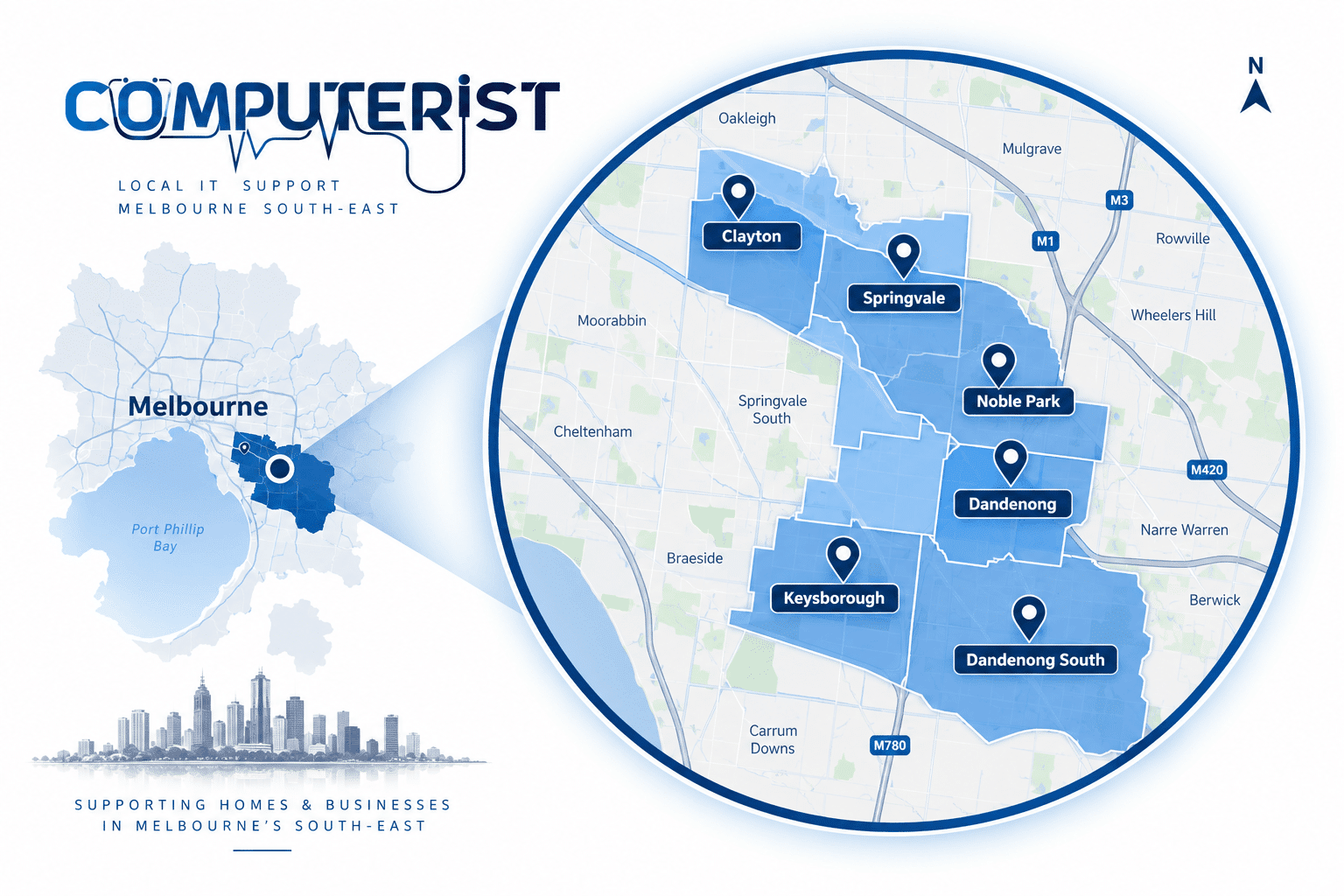
Computerist provides Computer & Hardware Upgrades across Melbourne’s South-East, including Noble Park, Springvale, Dandenong, Clayton, Keysborough & Dandenong South. We may also support surrounding south-eastern suburbs where the service requirement is suitable.

Computerist Service Areas

cropped COMP FAV V2 01

30 — Need a Computer UpgradeNeed a Computer Upgrade?

Not sure whether your computer needs an upgrade or replacement? Computerist can assess your existing hardware, identify what’s limiting performance and explain which upgrades are worthwhile. We’ll help you understand what makes sense before you spend money on new hardware.

Computer technician helping a customer prepare their computer for an upgrade.

NO FIX, NO FEE*

We charge an hourly rate for the time spent working on your technology. If we’re unable to resolve the problem, you won’t be charged for the diagnostic or travel component.

*Some exclusions and conditions may apply. We’ll explain applicable charges before work begins.

Get Your Questions Answered

Often, yes. We first identify what’s limiting performance. Depending on the system, an SSD, RAM or other upgrade may provide a meaningful improvement.

For many older computers still using mechanical hard drives, an SSD can provide a substantial improvement in responsiveness. Compatibility and the condition of the existing drive need to be checked first.

It depends on the model. Some laptops allow storage and/or memory upgrades, while others have components that are integrated into the motherboard.

Yes. Desktop computers generally provide more upgrade options, depending on the motherboard, case, power supply and existing components.

Yes, if the computer supports additional or higher-capacity memory. We’ll check the specifications before recommending RAM.

Often, yes. We can assess the existing system and determine whether an SSD upgrade and data migration are appropriate.


Yes. We can assess the system and identify whether the graphics card, CPU, RAM, storage, cooling or another component is limiting performance.


Potentially. The most useful upgrade depends on your editing software, workflow and existing hardware. RAM, storage, CPU and GPU performance may all be relevant.

Yes, where the computer supports it. We need to consider physical space, power supply, motherboard, cooling and other components.

Yes. Depending on the computer, this may involve replacing the existing drive, adding a second drive or using external storage.

Not necessarily, but any significant storage work carries some risk. Important data should be backed up before an upgrade wherever possible

We’ll assess the existing system, your requirements and the likely cost of upgrading. If replacement makes more sense, we’ll tell you.

Yes. We can assess your existing computer and help determine what hardware is compatible and appropriate for your requirements.

Hardware availability can vary. Where appropriate, we can discuss suitable components and installation options.