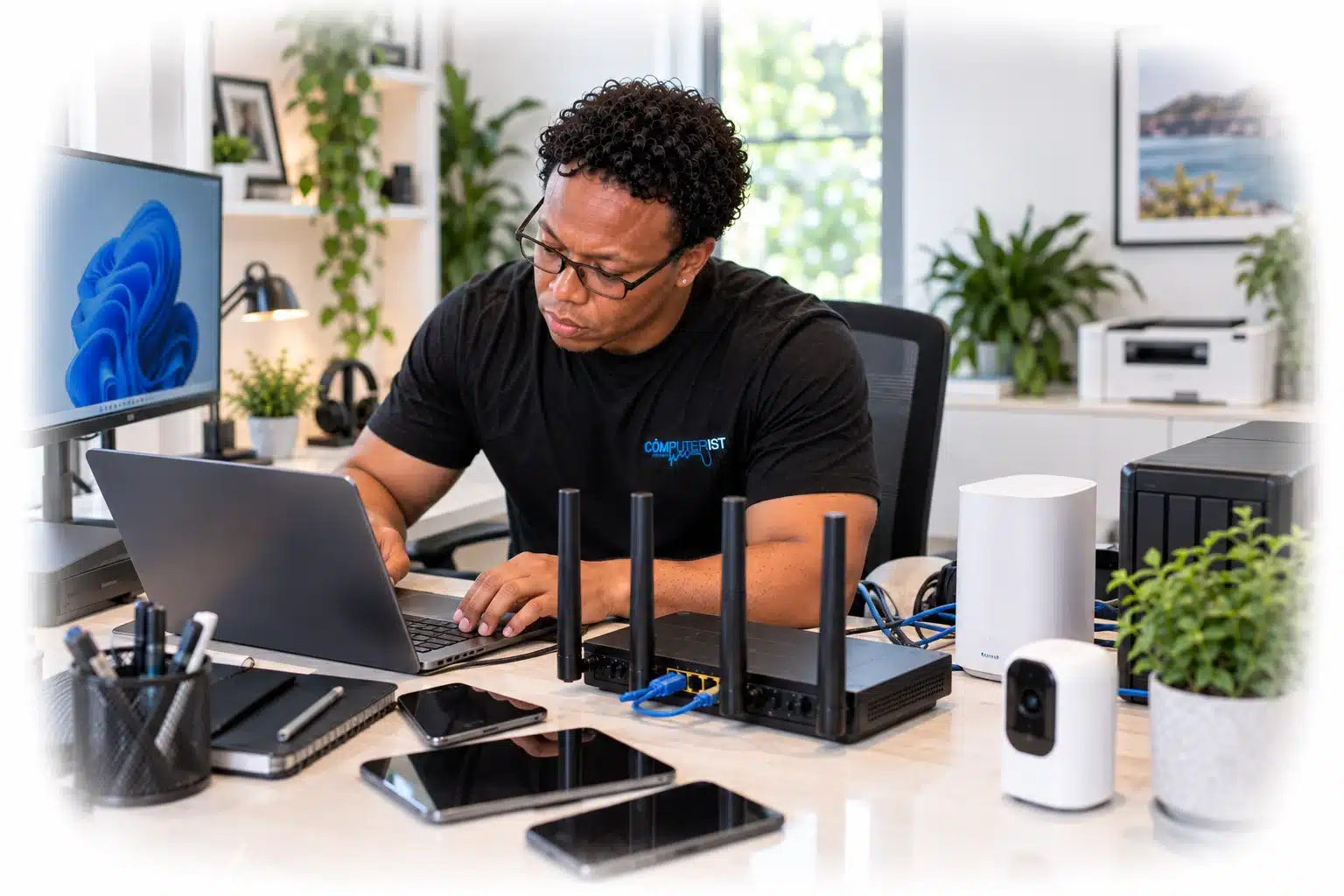
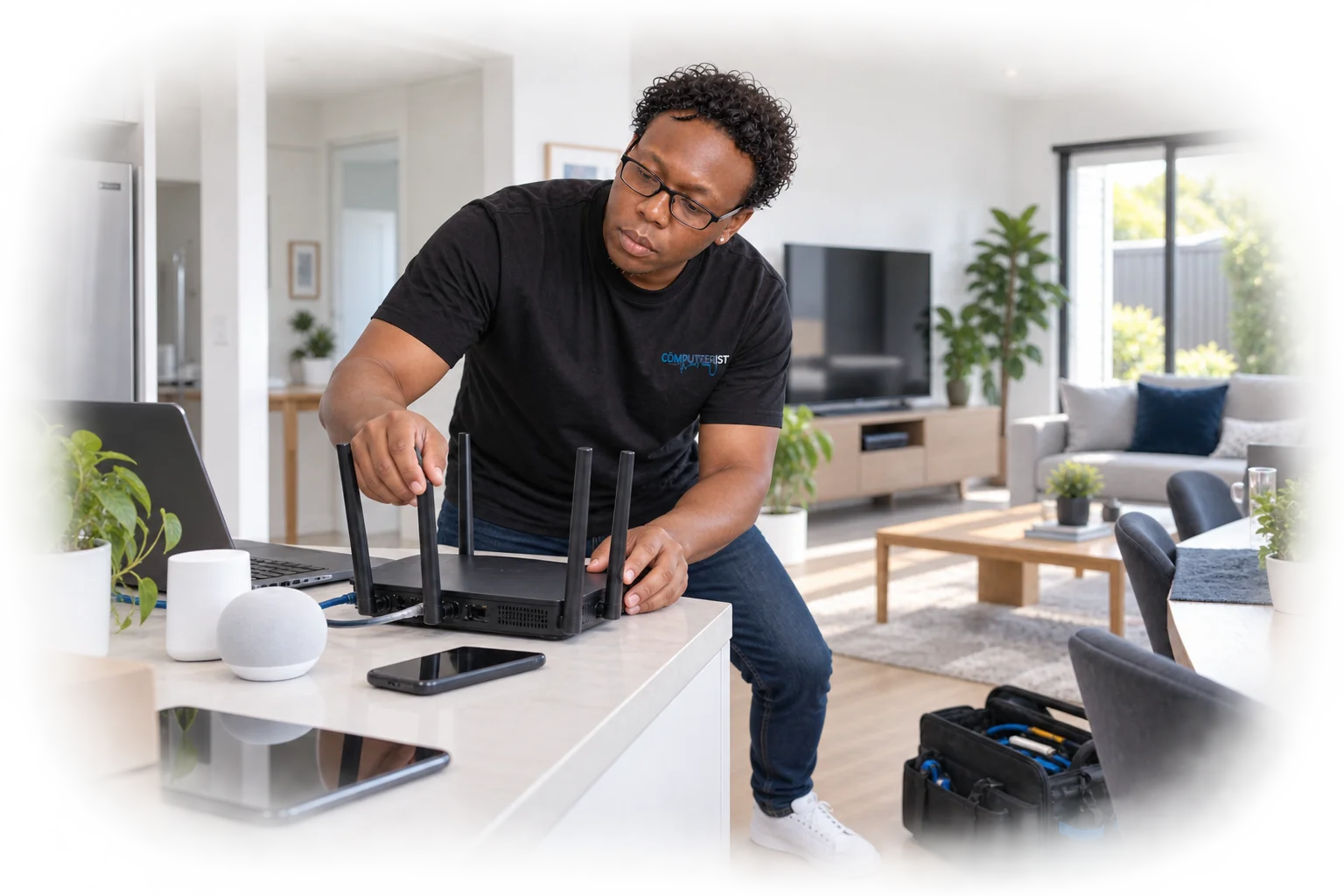
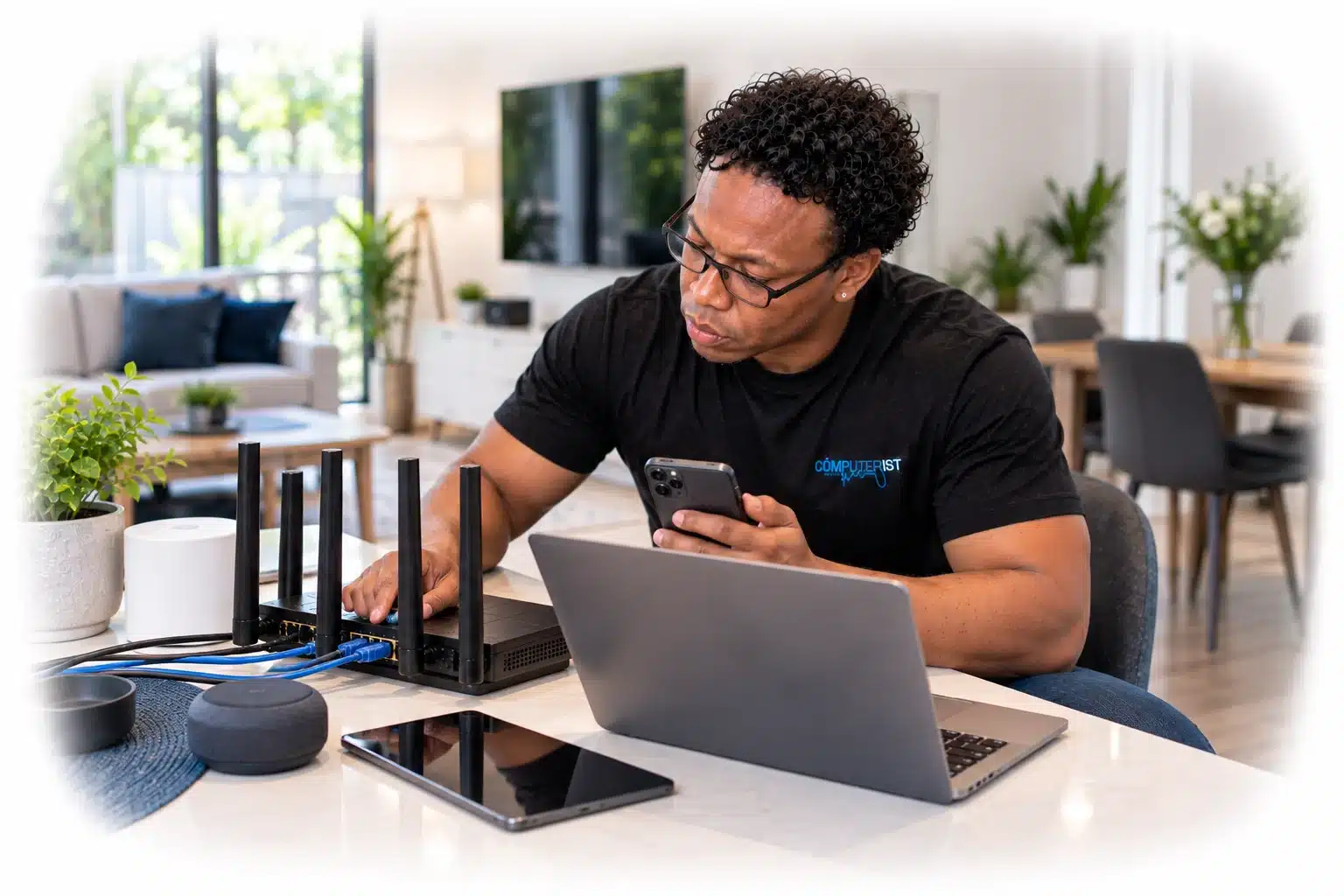
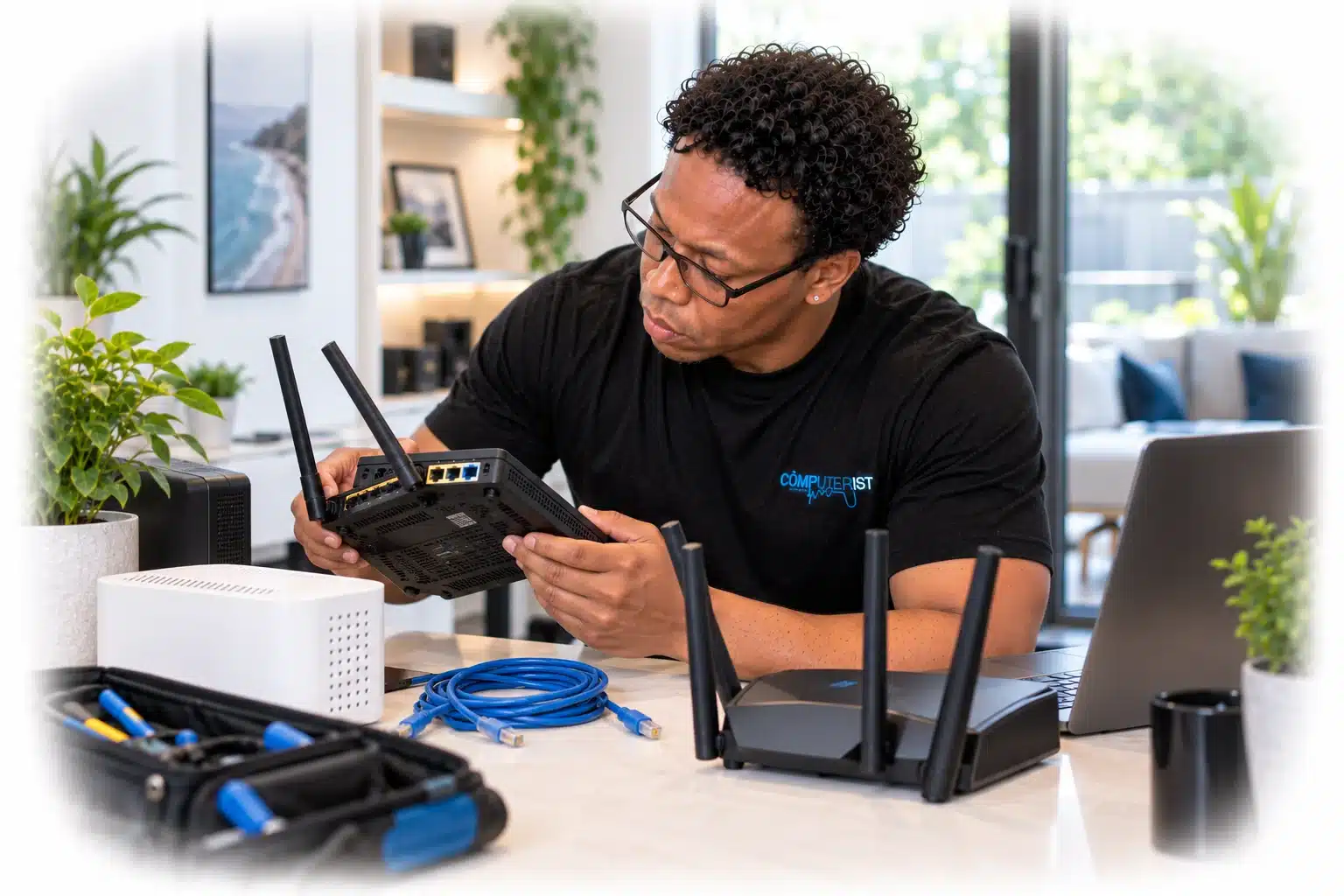
Slow Wi-Fi, dropouts and dead spots can make even a fast internet connection frustrating. Computerist can investigate whether the problem is your internet connection, router, Wi-Fi coverage, network configuration, or a connected device, and then recommend the most sensible solution for your home. Slow internet, Wi-Fi dropouts and dead spots can make even a good internet connection feel useless.You might have a fast NBN connection but still struggle to get a reliable signal in the bedroom. Your laptop may constantly disconnect. Streaming might buffer in one room but work perfectly in another. Smart devices may refuse to connect. Or perhaps nobody in the house can agree whether the problem is the internet, the router or the Wi-Fi.Computerist provides practical Wi-Fi and home networking support across Melbourne’s south-east.We investigate what’s actually causing the problem, improve your network where possible and help you get reliable connectivity throughout your home.
Home networking problems can be surprisingly difficult to diagnose.
You might experience:
Wi-Fi constantly disconnecting
Slow Wi-Fi
Weak Wi-Fi signal
Wi-Fi dead zones
Internet dropping out
Poor connection in certain rooms
Buffering when streaming
Slow downloads
Video calls freezing
Gaming lag
Devices unable to connect
Smart home devices dropping offline
Printers disappearing from the network
Problems connecting laptops or phones
Wi-Fi that works well near the router but poorly elsewhere
Multiple devices competing for bandwidth
Problems after changing your NBN provider or router
New router setup problems
Mesh Wi-Fi configuration problems
You don’t need to work out whether the problem is your NBN connection, router, Wi-Fi signal or device.
That’s what we’re here to investigate.
Wi-Fi Problems Aren’t Always Internet Problems
This is one of the most important things to understand.Your internet connection and your Wi-Fi network are related, but they’re not the same thing.For example, you could have:
A perfectly healthy NBN connectionbut:
Poor Wi-Fi coverage inside your home.Or your Wi-Fi could be working perfectly while your internet service is experiencing an outage.That’s why replacing the router immediately isn’t always the answer.Computerist can investigate the entire connection:
Internet connection → Router → Wi-Fi → Device and determine where the problem actually begins
Slow Wi-Fi
Slow Wi-Fi can be caused by many different things.
Possible causes include:
Distance from the router
Thick walls
Building materials
Interference
Poor router placement
Congested wireless channels
Too many connected devices
Outdated equipment
Incorrect configuration
Weak signal
Network congestion
Mesh configuration problems
ISP or internet connection problems
Your internet plan may not be the problem.
Buying a faster internet plan won’t necessarily fix poor Wi-Fi coverage.If the Wi-Fi signal cannot reliably reach a room, increasing your internet speed won’t magically improve the wireless connection. We’ll identify the bottleneck first.
Wi-Fi Dead Spots
A Wi-Fi dead spot is an area where the wireless signal is weak or unreliable.
Common examples include:
Bedrooms
Home offices
Garages
Outdoor areas
Upstairs rooms
Rooms separated from the router by thick walls
Areas at the opposite end of the house
The solution isn’t necessarily to install another random Wi-Fi extender.
Depending on the property, better options may include:
Better router placement
Additional access points
Mesh Wi-Fi
Ethernet cabling
Wired backhaul
Improved wireless configuration
Additional network equipment
We’ll consider the layout of the home and how you actually use the network.
Home Wi-Fi Setup
Setting up Wi-Fi isn’t simply a matter of plugging in a router and choosing a password.
A properly configured home network should consider:
Router placement
Wireless coverage
Network names
Security
Passwords
Device compatibility
Guest access
Smart-home devices
Printer connectivity
Performance
Future expansion
Computerist can help set up and configure home Wi-Fi networks so that your devices can connect reliably and securely.
Wi-Fi Router Setup & Configuration
Your router is responsible for much more than providing wireless access.
Depending on the equipment, it may also handle:
Internet connectivity
DHCP
DNS
Firewall functions
Wireless networking
Device management
Guest networks
Port forwarding
Parental controls
Security settings
Incorrect configuration can result in unreliable connectivity or unnecessary security exposure.
We’ll help configure the equipment appropriately for your home environment.
Mesh Wi-Fi
Mesh Wi-Fi systems can be an excellent solution for larger homes or properties where one router cannot provide adequate coverage.
A properly designed mesh system can provide multiple wireless access points working together to provide broader coverage.
However, more Wi-Fi equipment isn’t automatically better.
Poorly positioned mesh nodes can still produce:
Weak connections
Poor speeds
Unstable roaming
Interference
Unnecessary complexity
We’ll consider the layout of your home and how the network needs to be used before recommending additional equipment.
Wi-Fi Extenders vs Mesh Wi-Fi
People often ask:“Should I just buy a Wi-Fi extender?”Sometimes an extender is appropriate.But there are important differences between an inexpensive repeater and a properly designed network.
Wi-Fi extender
An extender can improve coverage in a particular area by repeating an existing wireless signal.It may be suitable for a relatively simple coverage problem.
Mesh Wi-Fi
A mesh system uses multiple network devices designed to work together and can provide more consistent coverage throughout a property.
Wired access point
In some homes, a wired access point connected back to the main network can provide an even better result.
The right solution depends on the property.
We’ll help you determine what makes sense rather than automatically recommending the most expensive option.
Home Network Cabling
Wireless isn’t always the best answer.
If you need reliable, high-performance connectivity for a:
Desktop PC
Gaming computer
Smart TV
Home office
NAS
Security system
Streaming device
A wired Ethernet connection may provide a more stable result.
Wired connections can offer:
Lower latency
Greater consistency
Higher throughput
Reduced wireless congestion
Better reliability for fixed devices
Where appropriate, Computerist can help assess your networking requirements and determine whether wired connectivity would be beneficial.
Home Office Wi-Fi
Working from home puts greater demands on a home network.Your connection may need to support:
Video meetings
Microsoft Teams
Microsoft 365
VPN connections
Cloud applications
Large file transfers
Remote desktop
Multiple computers
Phones and tablets
Printers
A network that was perfectly adequate for casual browsing may struggle when several people are working, studying and streaming at the same time.Computerist can help optimise your home network for a more reliable work-from-home environment.
Wi-Fi for Streaming
Streaming services can expose weaknesses in a home network.
You may notice:
Buffering
Poor picture quality
Streaming interruptions
Slow downloads
Problems when multiple people are watching different services
The problem may not be your streaming service or internet plan.
It could be:
Weak Wi-Fi
Network congestion
Router limitations
Poor coverage
Interference
Device connectivity
We’ll help identify the bottleneck.
Wi-Fi for Gaming
Online gaming is particularly sensitive to network quality.
A fast internet plan doesn’t automatically guarantee a good gaming experience.
Problems can include:
High latency
Ping spikes
Packet loss
Wi-Fi interference
Congestion
Unstable wireless connections
Router configuration problems
For fixed gaming systems, Ethernet is often worth considering.
For wireless gaming, network placement and signal quality become particularly important.
Computerist can help investigate the network rather than simply blaming the internet provider.
Smart Home & IoT Networking
Modern homes can contain dozens of connected devices.
You might have:
Smart TVs
Security cameras
Doorbells
Smart lights
Speakers
Thermostats
Appliances
Streaming devices
Smart plugs
Gaming consoles
When many devices share the same wireless network, configuration and coverage become increasingly important.
Some smart devices also have specific compatibility requirements.
Computerist can help investigate connectivity problems and organise your home network so your devices can communicate reliably.
Wi-Fi Printer Problems
A printer that repeatedly disappears from your computer can be a network problem rather than a printer problem.
Possible causes include:
Wi-Fi instability
IP address changes
Router configuration
Driver issues
Network discovery
Printer configuration
Device isolation
We can investigate whether the printer, computer or network is responsible.
If your internet connection repeatedly disconnects, the first question is:
Is the internet connection actually dropping?
Or:
Is your Wi-Fi disconnecting from the router?
Those are two different problems.
We can help determine whether the issue appears to be related to:
NBN connection
Modem/router
Wi-Fi
Cabling
Network configuration
Device
ISP service
If the fault appears to be with your internet provider or NBN service, we’ll explain what information you may need when contacting them.
NBN & Home Networking
Your NBN service provides the internet connection into your home.Your internal network distributes that connection to your devices.Computerist can help with the technology inside your home, including:
Router configuration
Wi-Fi
Mesh networks
Ethernet
Network devices
Connected computers
Printers
Smart devices
If the problem appears to originate outside your home network, we’ll tell you rather than pretending the router is responsible for everything.
If friends, family or visitors regularly use your network, a guest Wi-Fi network can provide a useful layer of separation.
Instead of giving visitors the same credentials used by your computers and smart devices, a properly configured guest network can provide separate access.
The exact capabilities depend on your router or mesh system.
Computerist can help configure guest access where the equipment supports it.
Home Network Troubleshooting
When a network problem occurs, changing random settings can sometimes make the situation worse.Our approach is to work methodically.
1. Understand the problem
Which devices are affected?When did the problem start?Does it happen everywhere or only in one room?
2. Test the connection
We’ll determine whether the problem is:
Internet
Router
Wi-Fi
Ethernet
Device
Configuration
3. Identify the bottleneck
We’ll look at the network as a whole rather than assuming the first device we see is responsible.
4. Recommend the appropriate solution
That could be:
Configuration changes
Better placement
Additional access point
Mesh Wi-Fi
Ethernet
Router replacement
Network redesign
ISP assistance
5. Test the result
Once changes are made, we’ll check that the network is behaving as expected.
Do You Need a New Router?
Not necessarily.
A router may be perfectly capable of handling your internet connection but poorly positioned.
Or it may be configured incorrectly.
Or your property may simply require additional wireless coverage.
On the other hand, an older router may genuinely be holding the network back.
We’ll assess:
Router age
Wireless capabilities
Coverage
Number of devices
Internet speed
Security features
Network requirements
Then we’ll tell you whether replacing it makes sense.
Home Networking for Home-Based Businesses
Some home-based businesses need more than a typical household network.
A home office may involve:
Multiple computers
Microsoft 365
Cloud applications
VPN
VoIP
Network storage
Printers
Business security requirements
Remote access
If you’re running a business from home, the network should be treated as part of your business infrastructure rather than simply an internet connection.
Computerist can help assess the requirements and provide practical IT support.
A Working Network Isn’t Enough If It’s Not Secure When a network fails, the priority is often to get everything working again as quickly as possible. But your home network also connects computers, phones, printers, smart devices and potentially important personal or business information. That’s why we look beyond simply restoring the connection and also consider whether the network is configured securely.
You don’t need to know whether it’s a DNS issue, Wi-Fi issue or router problem.
Describe the symptoms.
2. We investigate
We’ll work out where the problem is occurring.
3. We explain what we’ve found
We’ll tell you whether the issue appears to be:
Wi-Fi
Router
Internet
Cabling
Device
Configuration
Or something else.
4. We recommend the appropriate solution
That may be a simple configuration change rather than new equipment.
5. We implement and test
Where appropriate, we’ll configure the network and test the result.
How Much Does Home Networking Cost?
Home networking work varies considerably.A simple Wi-Fi configuration problem is very different from designing a network for a large house.Costs can depend on:
Number of devices
Property size
Network complexity
Existing equipment
Cabling requirements
Additional access points
Mesh equipment
Troubleshooting time
Configuration requirements
We prefer to understand your network before recommending equipment or significant changes.
Why Choose Computerist?
We solve the network problem, not just the Wi-Fi symptom
If your Wi-Fi is slow, the answer isn’t automatically:“Buy a mesh system.”If your internet keeps dropping out, the answer isn’t automatically:“Call your ISP.”We investigate where the problem actually exists.
Practical advice
You don’t necessarily need the latest router, the most expensive mesh system or the fastest internet plan.You need a network that works reliably for your home and the way you use it.We’ll help you determine what that means.
Broader IT experience
Computerist’s experience extends beyond home Wi-Fi into:
That experience helps when a seemingly simple Wi-Fi problem turns out to involve a wider technical issue.
Our Experiences Matter!
We understand the difference between fixing a computer and protecting the network
When a network fails, the instinct is often to call your ISP to get the systems working again as quickly as possible.But if the systems contain critical files, getting them working is not necessarily the priority.The priority may be protecting the information stored on it.That distinction matters.
We explain the situation honestly
Network issues can be stressful.
You don’t need someone making unrealistic assumptions.
We’ll explain:
What appears to have happened
What can potentially be done
What risks exist
What options are available
Whether ISP should be contacted
What the likely next steps are
Then you can make the decision.
Local Wi-Fi & Home Networking in Melbourne’s South-East
Serving Melbourne’s South-East
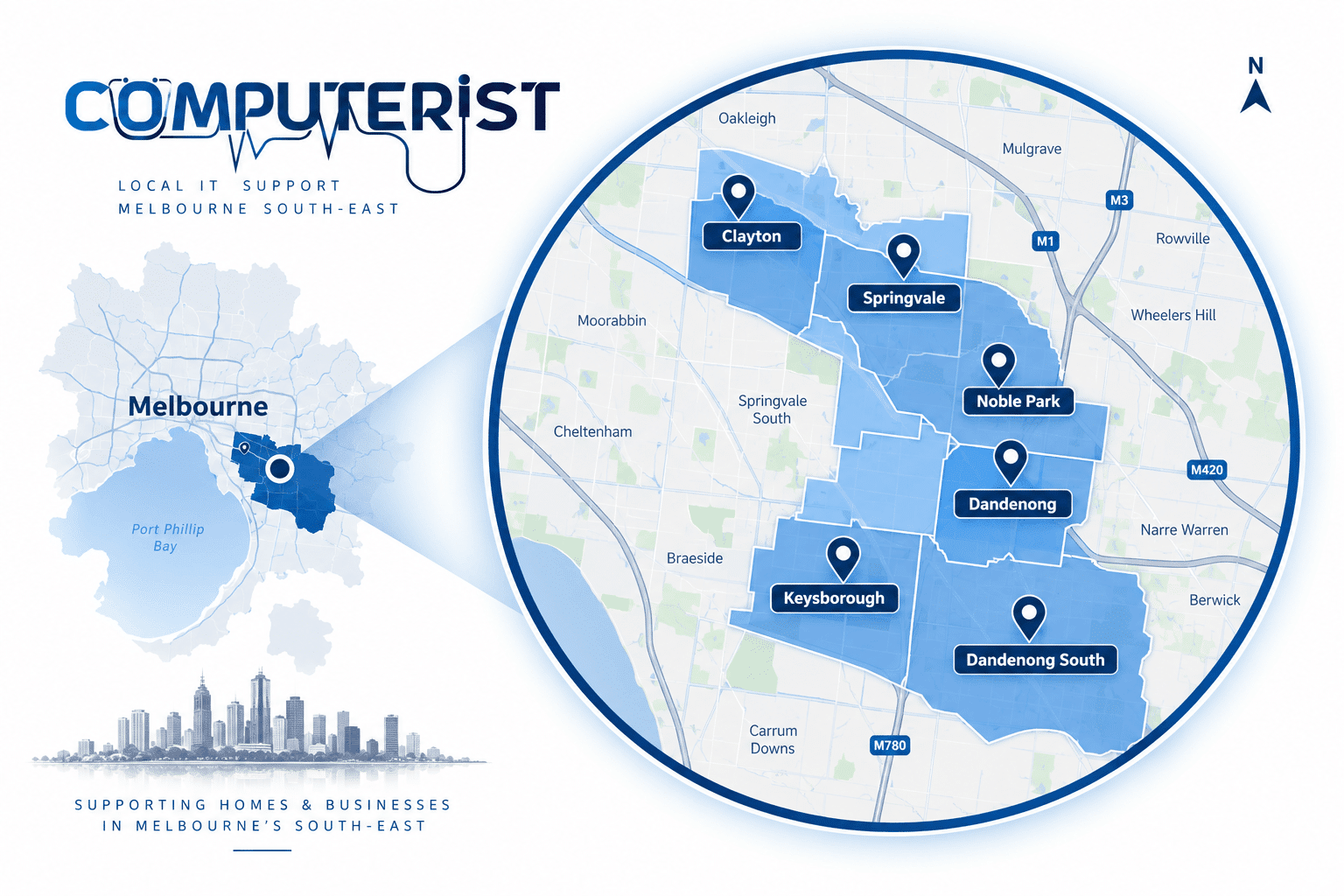
Computerist provides Wi-Fi & Home Networking support across Melbourne’s South-East, including Noble Park,Springvale, Dandenong, Clayton, Keysborough & Dandenong South. We may also support surrounding south-eastern suburbs where the service requirement is suitable.
Whether your Wi-Fi is slow, keeps dropping out, struggles to reach parts of your home or you’re setting up a new router, mesh system or home office, Computerist can investigate the problem and help you work out the most sensible next step.
We charge an hourly rate for the time spent working on your technology. If we’re unable to resolve the problem, you won’t be charged for the diagnostic or travel component.
*Some exclusions and conditions may apply. We’ll explain applicable charges before work begins.
Your internet speed and Wi-Fi performance are different things. Distance, interference, router capability, congestion and network configuration can all affect Wi-Fi performance.
There can be several causes, including interference, poor coverage, router problems, device drivers, configuration issues or an underlying internet connection problem.
Not necessarily. Mesh can be useful for larger homes and difficult coverage areas, but a better router position, wired access point or other solution may be more appropriate.
It depends. An extender can solve some coverage problems, but it isn’t always the best solution. We’ll consider the layout and requirements of your network first.
Can you improve Wi-Fi coverage throughout my house?
Yes. We can assess coverage and consider options such as router placement, mesh Wi-Fi, additional access points or Ethernet.
For many fixed devices, Ethernet provides a more consistent and lower-latency connection. Whether it is worth installing depends on your home and how you use your network.
We can investigate connectivity problems involving compatible smart-home and IoT devices, including whether the underlying issue is Wi-Fi coverage, configuration or the wider network.
We can investigate the equipment and network inside your home and help determine whether the issue appears to be your internal network or your internet service. If the fault appears to be with the provider or NBN connection, we’ll explain the next step.




 Wi-Fi Problems Aren’t Always Internet Problems
 Wi-Fi Problems Aren’t Always Internet Problems
 Slow Wi-Fi
 Wi-Fi Dead Spots

 Home Wi-Fi Setup
 Wi-Fi Router Setup & Configuration
 Mesh Wi-Fi
 Wi-Fi Extenders vs Mesh Wi-Fi
 Home Network Cabling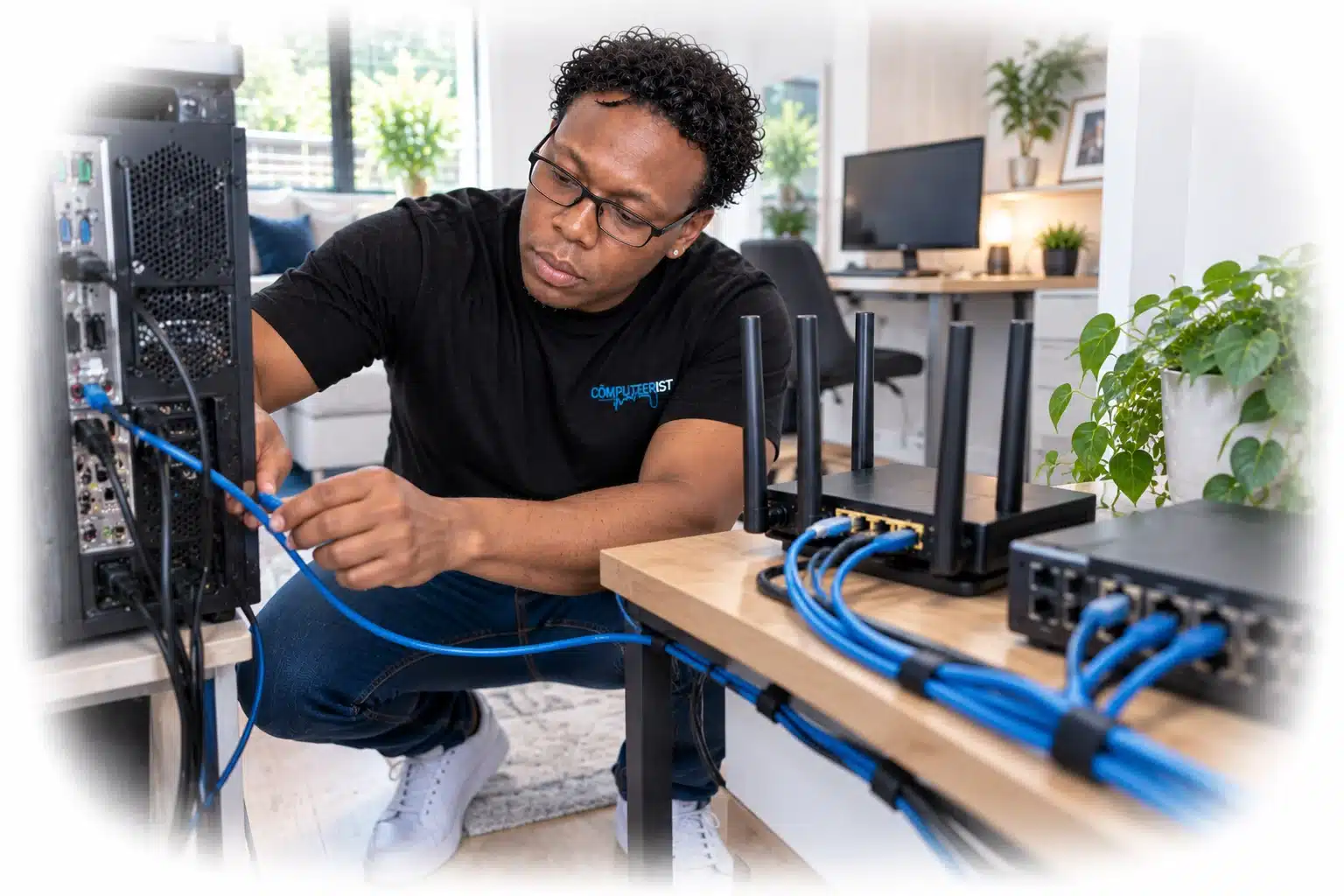
 Home Office Wi-Fi
 Wi-Fi for Streaming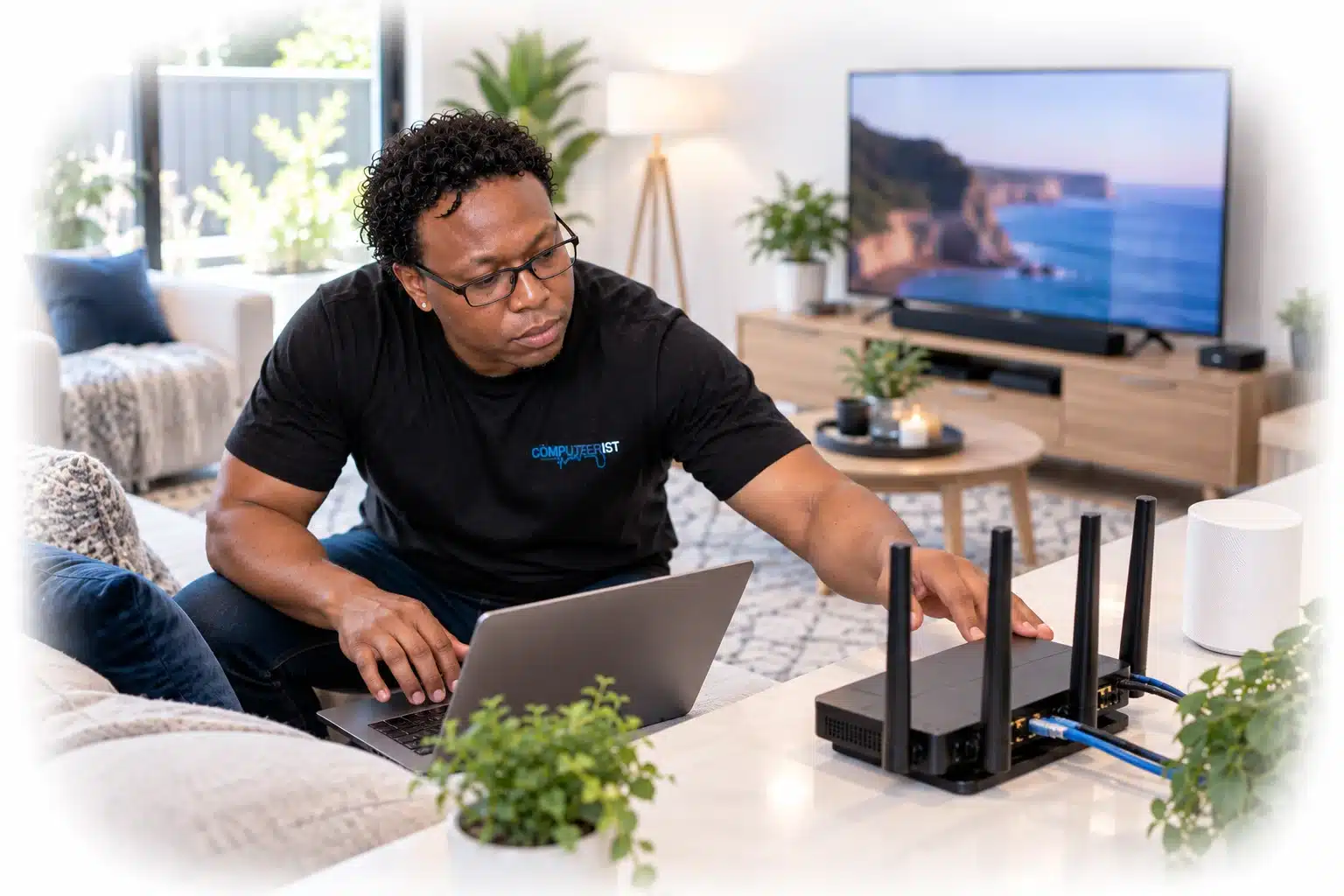
 Wi-Fi for Gaming
 Smart Home & IoT Networking
 Wi-Fi Printer Problems
 Internet Keeps Dropping Out
 NBN & Home Networking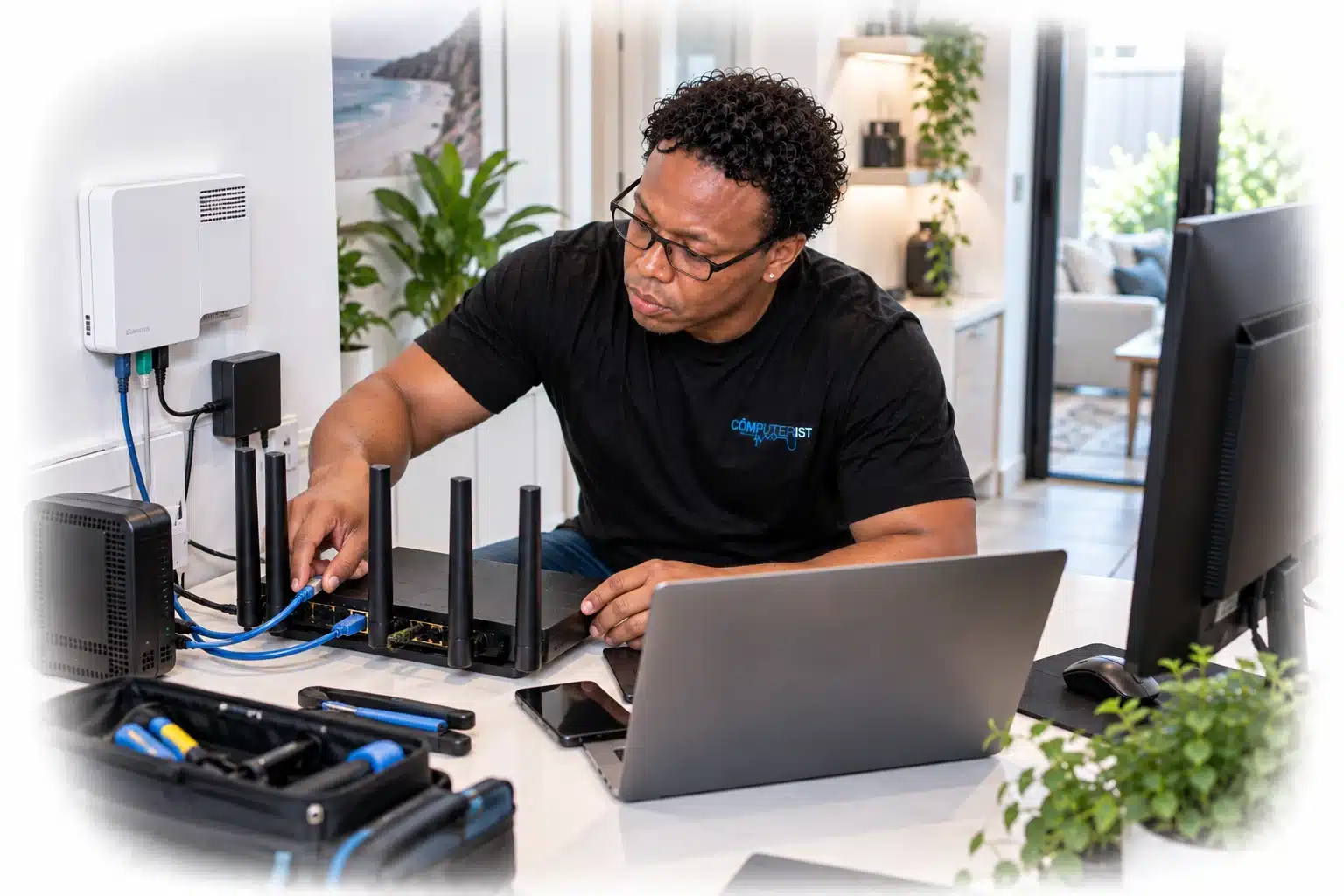
 Home Network Security
 Guest Wi-Fi
 Home Network Troubleshooting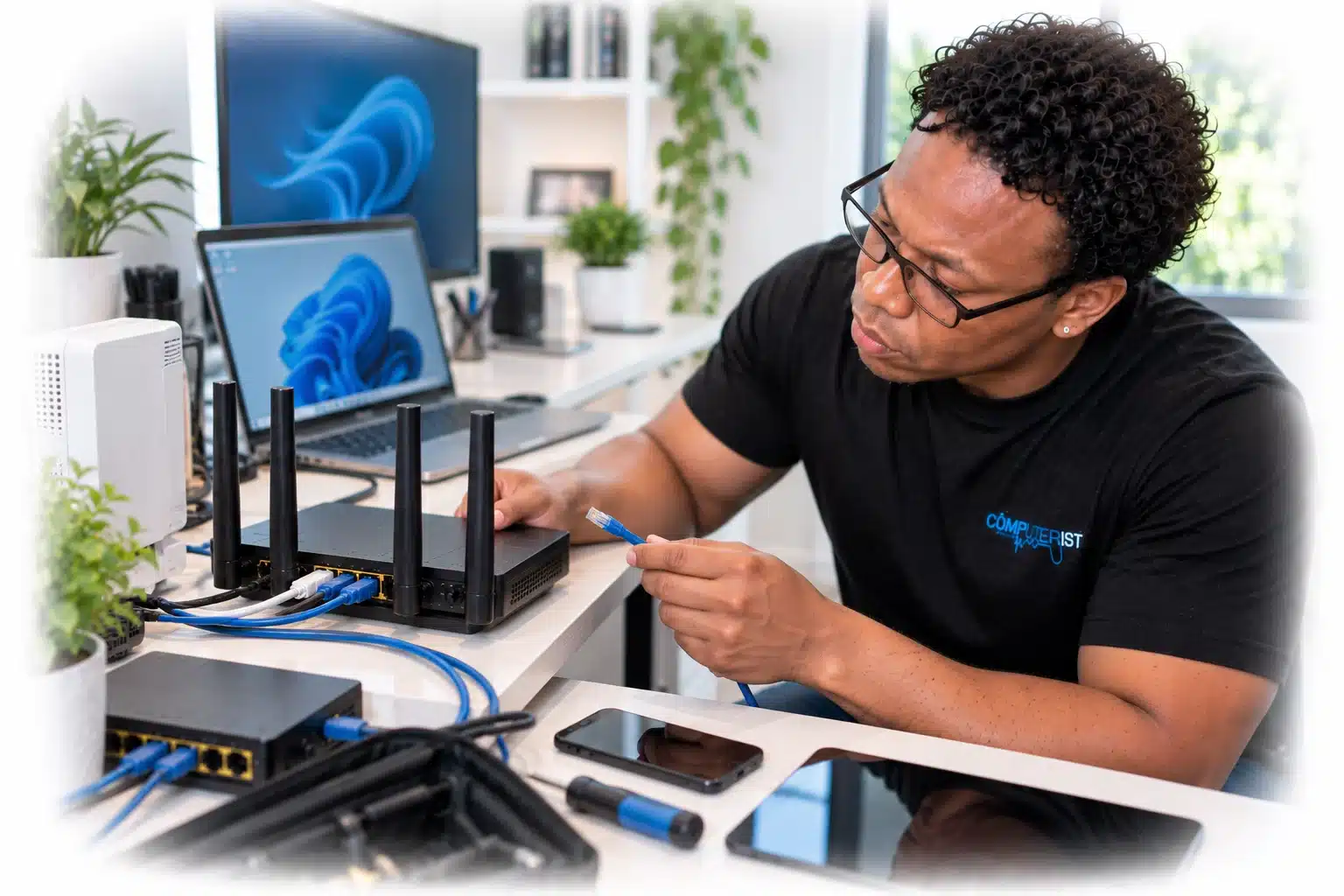
 Do You Need a New Router?
 Home Networking for Home-Based Businesses
 Why Network Security Matters
 What Happens When You Contact Computerist?




 Is Your Wi-Fi Driving You Crazy?
 Wi-Fi constantly disconnecting