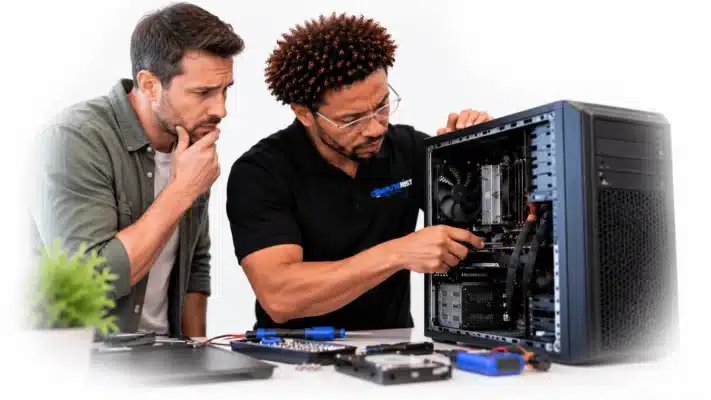


Desktop Repair in Melbourne’s South-East

Desktop Computer Repair Without the Guesswork

Desktop Repair

All Brands

Desktop Computer Problems? Let’s Find Out What’s Really Wrong.
Desktop PC Repair

A desktop computer that suddenly stops working can be frustrating — particularly when you rely on it for work, study, business, gaming or keeping your personal files.

The good news is that many desktop computer problems can be diagnosed and repaired without replacing the entire machine.

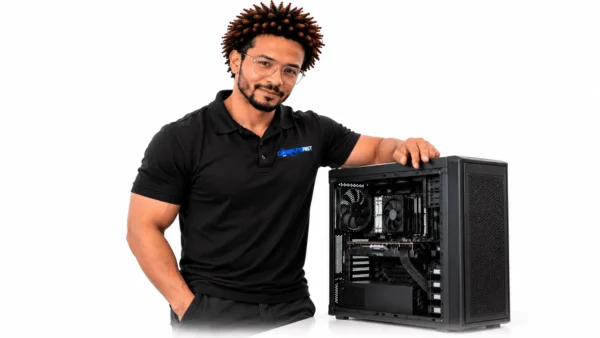
Computerist provides desktop computer repair, troubleshooting and upgrades for home users, professionals and small businesses across Melbourne’s south-east.

Whether your PC won’t start, Windows keeps crashing, the computer is running slowly, the machine is overheating or you’re considering an upgrade, we’ll help identify the real problem and explain your options.

Computerist's Desktop Repair & Setup Services What’s Wrong With Your Desktop PC?

A desktop computer can fail in many different ways. Sometimes the cause is obvious. A computer may refuse to power on or display an error message. Other problems are less straightforward — intermittent crashes, unexplained restarts, unusual noises or gradually declining performance can all point to different hardware or software issues. Computerist can investigate a wide range of desktop computer problems, including: What’s Wrong With Your Desktop PC?

icons8 check mark Desktop PC won’t turn on

icons8 check mark Computer powers on but won’t boot

icons8 check mark No display or black screen

icons8 check mark Windows won’t start

icons8 check mark Blue screen errors

icons8 check mark Random crashes or restarts

icons8 check mark Slow computer performance

icons8 check mark Overheating

icons8 check mark Loud fans

icons8 check mark Hard drive or SSD problems

icons8 check mark RAM and memory problems

icons8 check mark Graphics card problems

icons8 check mark Power supply problems

icons8 check mark Motherboard faults

icons8 check mark USB and peripheral problems

icons8 check mark Network and Wi-Fi problems

icons8 check mark Malware and virus infections

icons8 check mark Windows problems

icons8 check mark Driver issues

icons8 check mark Software crashes

icons8 check mark Data recovery

icons8 check mark Storage upgrades

icons8 check mark RAM upgrades

icons8 check mark Graphics card upgrades

icons8 check mark General PC troubleshooting

If you’re not sure what has gone wrong, don’t worry. You don’t need to know the technical cause before contacting us.

Desktop PC Diagnosis Desktop PC Diagnosis

A desktop computer is made up of multiple components that work together. When something goes wrong, replacing the first suspicious component isn’t always the answer.

A computer that won’t start, for example, could have a problem with: Desktop PC Diagnosis

icons8 check mark Power supply

icons8 check mark Motherboard

icons8 check mark RAM

icons8 check mark CPU

icons8 check mark Graphics card

icons8 check mark Storage

icons8 check mark BIOS or firmware

icons8 check mark Cabling

icons8 check mark Operating system

Similarly, a computer that is running slowly could have a completely different cause.

That’s why we start with diagnosis.

We’ll investigate the symptoms, test the appropriate components and determine what is actually causing the problem. Then we’ll explain what we’ve found.

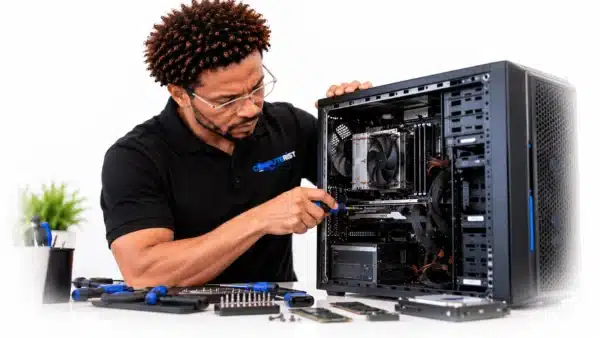
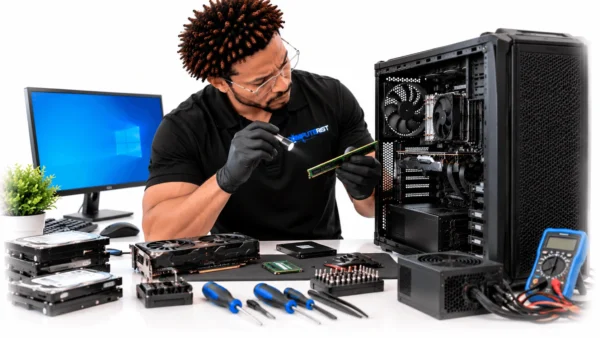
Home Computer Repair & IT Support Desktop Computer Hardware Repairs 4 Computer Technician Repairing Desktop PC

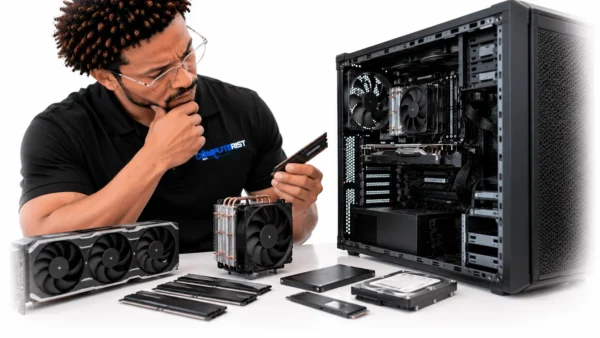
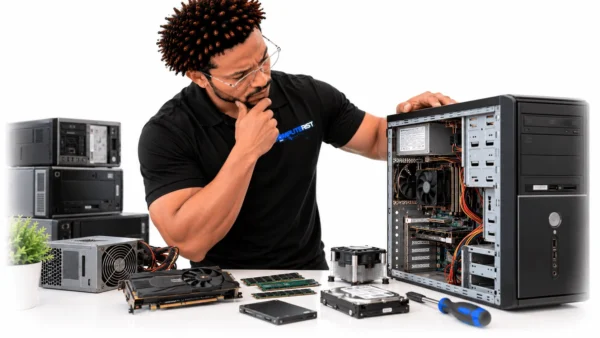
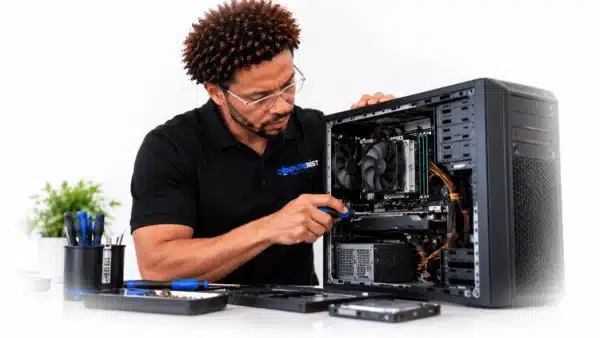
One of the advantages of a desktop computer is that individual components can often be repaired, replaced or upgraded. This can make a desktop PC considerably more repairable than many modern portable devices.

Hard Drives & SSDs 

Storage problems can cause:

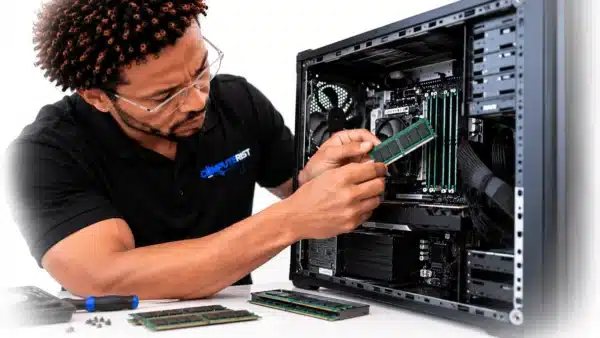
5 Focused PC Hardware Installation

icons8 check mark Slow performance

icons8 check mark Windows startup failures

icons8 check mark Application crashes

icons8 check mark Missing files

icons8 check mark File corruption

icons8 check mark Unexpected errors

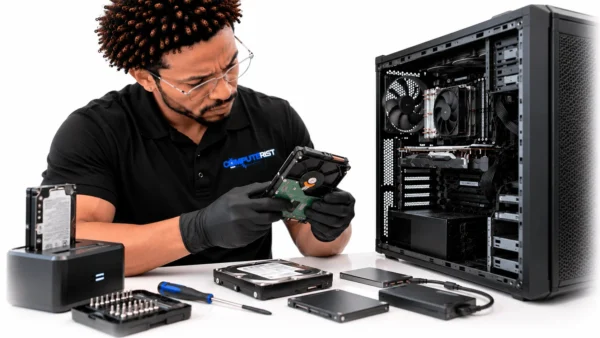
If a storage device is showing signs of failure, continued use can increase the risk of data loss. If your files are important, stop using the computer and contact us before attempting repeated repairs or recovery software. Learn About Data Recovery

RAM & Memory Problems AM & Memory Problems

Faulty or insufficient RAM can cause instability, application crashes and poor performance. If your desktop supports additional memory, a RAM upgrade can sometimes be a straightforward way to improve performance. We’ll check the computer’s current configuration and determine the best upgrade options.

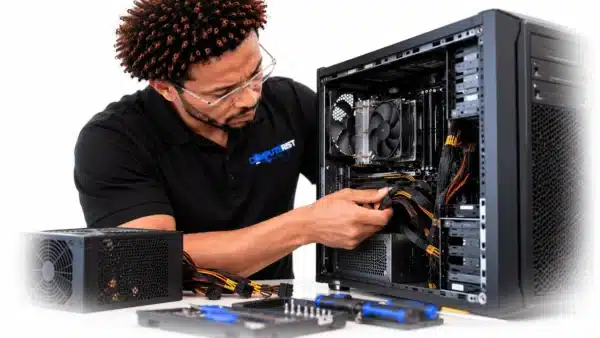
Desktop Computer Hardware Repairs Power Supply Problems

A faulty power supply can produce some very confusing symptoms.

Your desktop may: Power Supply Problems?

icons8 check mark Not turn on at all

icons8 check mark Switch off unexpectedly

icons8 check mark Restart under load

icons8 check mark Become unstable

icons8 check mark Produce unusual noises

icons8 check mark Fail intermittently

A power supply problem can also affect other components.

If your computer is behaving strangely after a power event, surge or hardware upgrade, the power supply should be considered as part of the diagnosis.

Graphics Card Problems Graphics Card Problems

Graphics cards are particularly important in:

icons8 check mark Gaming computers

icons8 check mark Video editing systems

icons8 check mark Design workstations

icons8 check mark CAD systems

icons8 check mark AI and compute workloads

icons8 check mark Multi-monitor setups

A graphics problem can appear as: Graphics Card Problems

icons8 check mark No display

icons8 check mark Screen artefacts

icons8 check mark Driver crashes

icons8 check mark Application crashes

icons8 check mark Game crashes

icons8 check mark Flickering

icons8 check mark Unexpected restarts

The graphics card isn’t always the culprit, however.

Drivers, power supplies, cables, monitors, motherboard slots and other components can produce similar symptoms.

We’ll investigate before recommending replacement.

Computer Overheating?Desktop PC Overheating

A desktop computer generates heat. Under normal conditions, its cooling system should remove that heat efficiently. When airflow becomes restricted or cooling components begin to fail, temperatures can rise.

Signs of a potential overheating problem include:

Desktop PC Overheating

icons8 check mark Fans constantly running at high speed

icons8 check mark Sudden shutdowns

icons8 check mark Performance dropping during demanding tasks

icons8 check mark System instability

icons8 check mark Excessive heat

icons8 check mark Loud fans

icons8 check mark Crashes under load

Potential causes include:

icons8 check mark Dust buildup

icons8 check mark Blocked airflow

icons8 check mark Failed fans

icons8 check mark Cooling system problems

icons8 check mark Thermal interface issues

icons8 check mark Poor case airflow

icons8 check mark High CPU/GPU workloads

We can investigate the cause and recommend an appropriate solution.

Slow Desktop Computer Repair Slow Desktop Computer Repair

A desktop PC that used to feel fast but has gradually become slower doesn’t necessarily need replacing.

The cause could be: Slow Desktop Computer Repair

icons8 check mark  Ageing storage

icons8 check mark Insufficient RAM

icons8 check mark Too many startup programs

icons8 check mark Malware

icons8 check mark Windows problems

icons8 check mark Low storage capacity

icons8 check mark  Background applications

icons8 check mark  Hardware degradation

icons8 check mark  Overheating

icons8 check mark  An unsuitable configuration

We’ll determine where the performance bottleneck is before recommending an upgrade.

When an Upgrade Makes Sense Desktop Computer Upgrades

Desktop Computer Upgrades

One of the biggest advantages of owning a desktop computer is its upgrade potential. Depending on the system, we may be able to improve performance by upgrading:

SSD Storage Upgradeicons8 check mark SSD / Storage

Replace an older mechanical drive or add additional storage for improved responsiveness and capacity.

icons8 check mark RAM 

Add memory where the motherboard and operating system support it.

icons8 check mark Graphics Card

Graphics Card

Upgrade graphics performance for gaming, design, video production and other demanding workloads.

icons8 check mark CPU Focused PC Builder Installing CPU Components

Some desktop systems allow the processor to be upgraded while retaining the existing motherboard.

icons8 check mark Cooling Computerist Installing PC Case Fan

Improved cooling can help systems operating under sustained workloads.

icons8 check mark Power Supply Power Supply

A suitable power supply may be necessary when installing higher-powered components.

Don’t upgrade blindly

A component upgrade needs to be compatible with the rest of the computer.

We’ll consider:Don’t Upgrade Blindly

icons8 check mark Motherboard compatibility

icons8 check mark CPU compatibility

icons8 check mark RAM type

icons8 check mark Available expansion slots

icons8 check mark Power requirements

icons8 check mark Physical dimensions

icons8 check mark Cooling requirements

icons8 check mark Storage interfaces

icons8 check mark Operating system compatibility

The goal isn’t to sell you the biggest component available.

It’s to make the right improvement for your computer and what you actually use it for.

Gaming PC Repairs & UpgradesGaming PC Repairs & Upgrades

Gaming computers can be particularly demanding because they often operate under high CPU and GPU loads for extended periods.

If your gaming PC is:

icons8 check mark Overheating

icons8 check mark Crashing during games

icons8 check mark Dropping performance

icons8 check mark Producing graphical artefacts

icons8 check mark Restarting unexpectedly

icons8 check mark Running excessively loud

Struggling with newer games, the cause needs to be identified rather than assuming the graphics card needs replacing.

We can assess the system and help determine whether the solution is: Gaming PC Repairs & Upgrades

icons8 check mark Cooling

icons8 check mark Drivers

icons8 check mark Hardware

icons8 check mark Storage

icons8 check mark Memory

icons8 check mark Graphics

icons8 check mark Power

icons8 check mark Windows

Or simply an ageing configuration

icons8 gaming center base 48

Custom-Built & Upgraded Desktop PCs 


Custom-Built & Upgraded Desktop PCs


Desktop computers can evolve over time. A system that was perfectly adequate several years ago may still have a useful foundation today. Instead of automatically replacing the entire computer, it may be possible to upgrade selected components. We can help assess whether an existing PC is worth upgrading or whether starting with a new system makes more sense.

Windows Desktop Problems Windows Desktop Problems

 Not every desktop problem is hardware-related.

Windows can experience: Windows Desktop Problems

icons8 check mark Startup failures

icons8 check mark Update problems

icons8 check mark Driver conflicts

icons8 check mark Application crashes

icons8 check mark Blue screens

icons8 check mark Configuration issues

icons8 check mark Performance problems

icons8 check mark Corrupted system files

icons8 check mark Login problems

icons8 check mark Unexpected errors

Computerist can investigate Windows problems and determine whether the cause is the operating system, software, hardware or another part of the environment.

Computerist's virus removal support across Melbourne's south-eastVirus & Malware Removal

A desktop computer that suddenly becomes slow, displays unexpected advertisements or behaves differently may have been affected by unwanted software or malware.

Warning signs can include: Virus & Malware Removal

icons8 check mark Unexpected pop-ups

icons8 check mark Browser redirects

icons8 check mark Unknown programs

icons8 check mark Unusual security warnings

icons8 check mark Excessive system activity

icons8 check mark Strange network behaviour

icons8 check mark Files being modified unexpectedly

icons8 check mark Unexplained performance problems

We can assess the system and help remove many common infections. If there’s evidence that passwords or accounts may have been compromised, we’ll also explain the additional steps that should be considered.

Backup & Disaster Recovery Desktop Data Recovery

 Desktop Data RecoveryA desktop computer can contain years of important information. Business documents, photographs, financial records, projects and personal files may all be stored on its drives.

If your computer has suffered:

icons8 check mark Hard drive failure

icons8 check mark SSD failure

icons8 check mark Windows failure

icons8 check mark Accidental deletion

icons8 check mark File corruption

icons8 check mark Hardware damage

icons8 check mark Unexpected shutdown

If the data is important, don’t experiment.

Avoid repeatedly powering up a failing drive or installing recovery software onto it. The wrong approach can make an already difficult recovery more complicated. Computerist can assess the storage device and explain the available options.

Technology Setup for Home-Based BusinessesDesktop Computer Repair for Home Users

A desktop computer can be an important part of everyday life.

It might be used for: Desktop Computer Repair for Home Users

icons8 check mark Personal finances

icons8 check mark Photos and videos

icons8 check mark Study

icons8 check mark Work from home

icons8 check mark Gaming

icons8 check mark Online services

icons8 check mark Family documents

icons8 check mark Creative projects

When something goes wrong, you shouldn’t have to understand computer hardware to get help. Explain what happened.

We’ll investigate the rest.

Maintenance for Small BusinessesDesktop IT Support for Small Businesses 
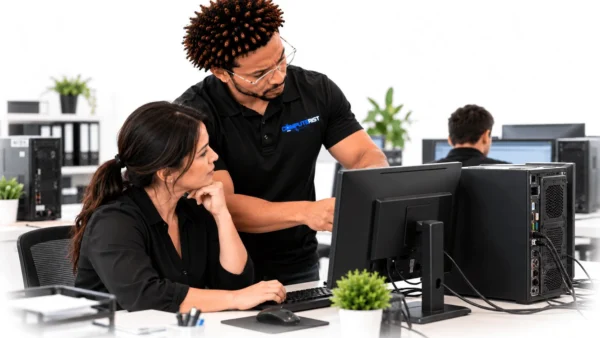
For a business, a desktop computer can be part of a much larger environment.

A problem may involve: IT Support at a Modern Workstation

icons8 check mark Microsoft 365

icons8 check mark Business applications

icons8 check mark Network connectivity

icons8 check mark File servers

icons8 check mark Security software

icons8 check mark Printers

icons8 check mark Shared resources

icons8 check mark User accounts

icons8 check mark Backup systems

Computerist can help diagnose desktop problems within the wider business environment rather than treating the computer as an isolated device.

icons8 gaming computer 64

What Happens During a Desktop Repair? 

 What Happens During a Desktop Repair?

We keep the process straightforward.

1. Tell us what happened

Describe the problem in your own words. You don’t need to know whether it’s RAM, Windows, the motherboard or something else.

2. We diagnose it

We’ll investigate the symptoms and test the relevant hardware and software.

3. We explain the problem

We’ll tell you what we’ve found and what it means.

4. We discuss your options

Depending on the problem, your options may include:

icons8 check mark Repair

icons8 check mark Component replacement

icons8 check mark Upgrade

icons8 check mark Software troubleshooting

icons8 check mark Data recovery

icons8 check mark Replacement of the computer

5. You decide

We won’t recommend spending money simply because we can. If the repair doesn’t make financial sense, we’ll tell you.

6. We carry out the approved work

Once you’ve decided to proceed, we’ll complete the repair and test the system. For official Windows troubleshooting guidance, see Microsoft Support — Windows Help.

How Much Does PC Repair Cost? 

How Much Does PC Repair Cost?

There isn’t a single price for desktop computer repair. A Windows configuration problem and a failed motherboard are very different jobs. The final cost can depend on:

icons8 check mark The fault

icons8 check mark Required parts

icons8 check mark Labour

icons8 check mark Computer model

icons8 check mark Component availability

icons8 check mark Data recovery requirements

icons8 check mark Whether an upgrade is involved

We prefer to diagnose the problem before recommending significant repair work.

That way, you can make an informed decision rather than paying for a repair without knowing whether it’s worthwhile.

Repair, Upgrade or Replace? 

Repair, Upgrade or Replace?

Sometimes the best repair is knowing when not to repair. We’ll consider:

icons8 check mark Repair

If the fault is relatively straightforward and the computer remains suitable for your needs.

icons8 check mark Upgrade

If replacing one or more components could give the system significantly more useful life.

icons8 check mark Replace

If the computer has reached the point where major repairs would cost more than the system is reasonably worth.

We won’t pretend every old PC should be saved.

Our job is to give you an honest assessment so you can decide where your money is best spent.

COMP FAV V2 01 300x300 1

Why Choose Computerist? 

Why Choose Computerist?

Real-world IT experience

Computerist isn’t limited to fixing individual computers. Our experience extends into professional IT environments involving: Microsoft 365 Endpoint support, Networking, Cybersecurity Cloud services Business systems Hardware deployments Disaster recovery Infrastructure That broader perspective can be valuable when a desktop problem turns out to be part of a larger technical issue.

Straightforward explanations

Computer problems can be confusing enough without adding technical jargon. We’ll explain what we’ve found in language that makes sense. You should understand: What’s wrong. What can be done. What it is likely to cost. Whether it’s worth doing.

No Fix, No Fee

Where applicable, Computerist operates a No Fix, No Fee approach. The specific conditions depend on the type of work involved, so we’ll explain them before proceeding.

Computerist IT Solutions

Desktop Repair & Practical IT Support

Local Desktop Computer Repair in Melbourne’s South-East

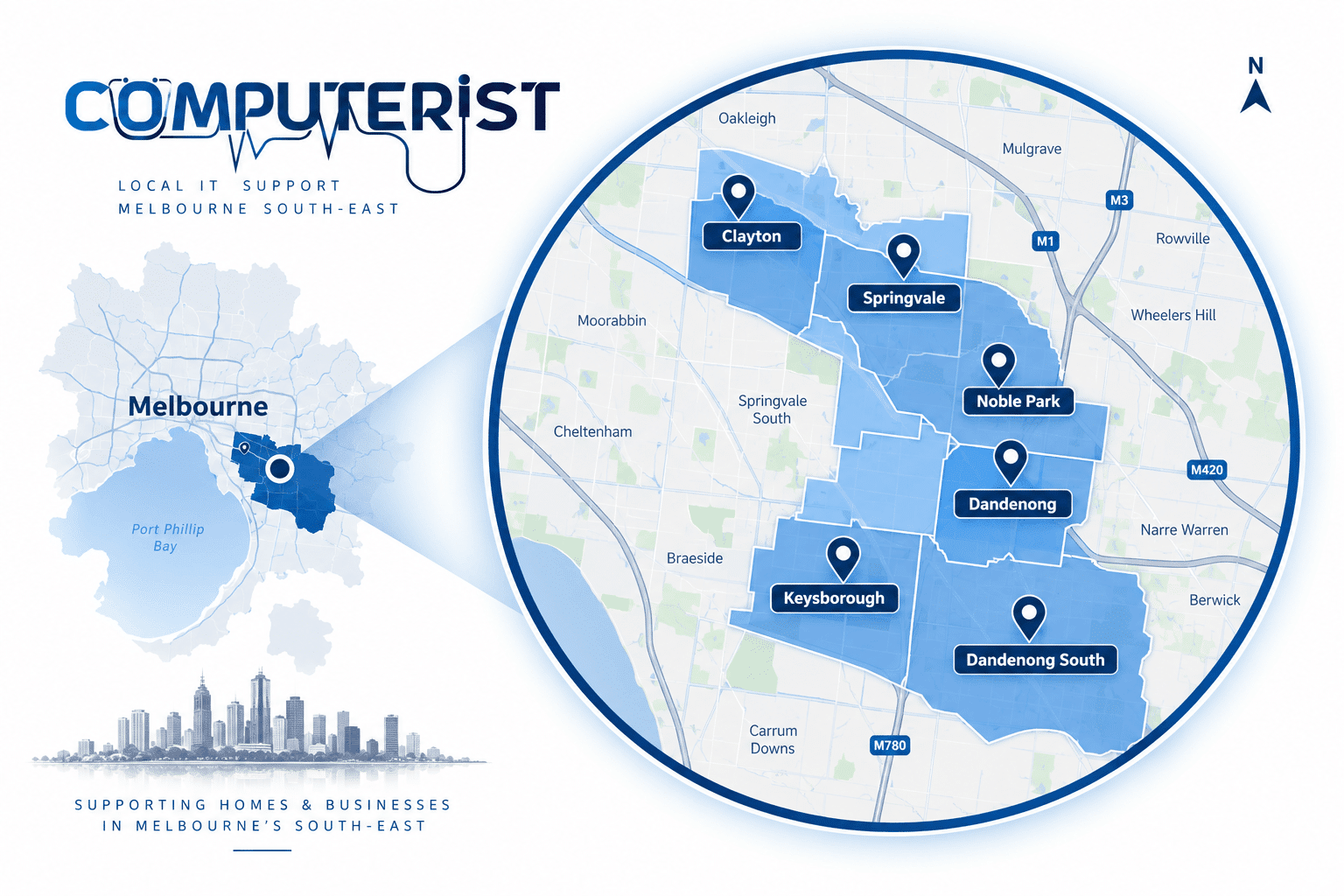
Computerist provides Desktop Repair across Melbourne’s South-East, including include Noble Park · Springvale · Dandenong · Clayton. Keysborough, Dandenong South. We may also support surrounding south-eastern suburbs where the service requirement is suitable.

Computerist Service Areas
icons8 gaming computer 64

Need Desktop Repair? 

Need Desktop Repair?

Don’t replace your desktop before finding out what’s actually wrong. Whether your PC won’t start, is running slowly, crashing, overheating, displaying errors or simply not performing as it should, Computerist can help diagnose the cause and explain the most sensible next step.

NO FIX, NO FEE*

We charge an hourly rate for the time spent working on your technology. If we’re unable to resolve the problem, you won’t be charged for the diagnostic or travel component.

*Some exclusions and conditions may apply. We’ll explain applicable charges before work begins.

Get Your Questions Answered

Yes. A desktop that won’t power on can have problems involving the power supply, motherboard, cabling, RAM, CPU or other components. Diagnosis is required to identify the cause.

Yes. No-display problems can originate from the monitor, cable, graphics card, RAM, motherboard, BIOS or other components. We’ll work through the likely causes rather than assuming the graphics card has failed.

It depends on the hardware and what you use the computer for. An SSD or RAM upgrade can make a significant difference to some systems, while others are better replaced.

Yes, if the system is suitable for upgrading. We’ll consider compatibility, power requirements, cooling and the rest of the system before recommending components.

Potentially. If the storage device has failed, the priority should be protecting the remaining data. Avoid repeatedly trying to start a failing drive if the information is important.

Yes. We’ll investigate whether hardware, Windows, malware, storage, memory, overheating or another issue cause the problem.

We can investigate and remove many common malware infections. If we identify signs of account compromise or other security concerns, we’ll explain what else to do.

In many cases, yes, depending on the underlying problem. However, no repair process can guarantee that data will remain untouched when a storage device or operating system is seriously damaged. Important data should always be backed up where possible.

Yes. Custom-built systems can be diagnosed, repaired and upgraded, subject to the condition and compatibility of their components.

Depending on the problem, on-site, remote, workshop or pickup options may be available. Some hardware diagnostics and repairs are more appropriately performed in a controlled environment.

Yes. We can investigate whether the slowdown is caused by Windows, software, malware, insufficient RAM, an ageing hard drive, overheating or another hardware issue and recommend the most practical solution.

A desktop that won't power on can have several causes, including the power supply, motherboard, power button, cables or other internal components. We can diagnose the system and determine where the problem is occurring.

Yes. We can investigate suitable boot failures and determine whether the cause is Windows, storage, boot configuration, drivers or hardware.

Yes. Repeated crashes can result from faulty hardware, drivers, overheating, Windows problems, malware or incompatible software. We can investigate the underlying cause.

Yes. Freezing can be caused by hardware faults, storage problems, memory issues, overheating, Windows or software. We'll investigate the problem rather than simply restarting the computer and hoping it goes away.

We can investigate overheating and potential causes such as dust, restricted airflow, cooling problems, fans, background processes and hardware issues. Appropriate cleaning or component replacement may help depending on the situation.

Yes. Physical cleaning can be part of appropriate computer maintenance and may help improve airflow and cooling. We take care when cleaning internal components.

Often, yes. Depending on the computer, upgrades such as SSD storage, RAM and graphics hardware may improve performance. We'll assess whether upgrading is technically possible and financially worthwhile.

Sometimes. If the existing computer is otherwise suitable, an upgrade can be a cost-effective way to improve performance. If multiple components are ageing or the system no longer meets your requirements, replacement may make more sense.

If the computer supports a suitable SSD, yes. An SSD upgrade can significantly improve startup times and general responsiveness on many older systems.

Yes, if the system supports a compatible memory upgrade. We'll check the computer's specifications and determine the appropriate type and capacity.

For compatible desktop computers, yes. We can diagnose suitable power-related faults and determine whether the power supply is the likely cause.

Yes. Motherboard faults can be difficult to diagnose because they can produce symptoms that appear to come from other components. We'll investigate the system and identify the most likely cause.

For compatible desktop computers, we can assist with graphics card upgrades or troubleshooting. Compatibility, power requirements, case size and other components need to be considered.

Yes. We can assist with suitable Windows problems involving updates, drivers, startup, configuration, software, performance and system errors.

Yes. We can assist with suitable Windows installation and configuration requirements. Where existing data is important, we'll consider data protection before reinstalling the operating system.

Yes. Computerist can install and configure compatible applications, drivers and other software and help ensure important software is appropriately updated.

Yes. We can identify and remove suitable unnecessary or unwanted applications while taking care not to remove software required by Windows or other programs.

Yes. We can investigate malware, unwanted software, browser redirects, suspicious activity and other security problems and provide appropriate remediation.

Possibly. If the computer has failed but its storage remains accessible, data may be recoverable. The likelihood of recovery depends on the condition of the storage and what caused the failure.

Data Recovery →

Recovery may be possible in some situations, particularly when the affected storage has not been extensively used since deletion. If important data has been deleted, minimise further use of the device and seek advice as soon as possible.

Yes. We can assist with transferring suitable documents, photographs, files and other data from an existing computer to a new system.

Yes. We can help configure a new computer with Windows, applications, email, Microsoft 365, printers, security settings and other required services.

Yes. We provide printer setup and support for homes and home offices, including compatible USB and wireless printers, drivers, scanning and configuration.

Printer Setup →

We can investigate suitable Wi-Fi and home-networking problems, including connectivity, router configuration and wireless performance. Physical network problems may require onsite assistance.

Wi-Fi & Home Networking →

Yes. Computerist provides suitable iPhone and iPad support, including setup, email, Microsoft 365, accounts, Wi-Fi, synchronisation and general configuration.

iPad & iPhone Support →

Yes. We can assist with suitable Mac and MacBook hardware, macOS, software, storage and performance problems.

Mac Repair →

Yes. We can troubleshoot suitable gaming PC problems and assist with compatible hardware upgrades and custom gaming PC builds.

Custom Gaming PC Builds →

Yes. We can provide specialist assistance for suitable existing Hackintosh systems, including OpenCore, EFI, ACPI, DSDT, SSDT, kexts and hardware compatibility.

Hackintosh Support →

We can investigate computers that develop problems following a power outage or electrical event. The fault could involve the power supply, motherboard, storage or another component.

If you suspect electrical damage, avoid repeatedly powering the computer on.

Liquid damage can cause serious electrical and corrosion problems. If a computer has been exposed to liquid, switch it off, disconnect the power and avoid turning it back on. We can assess whether repair or data recovery is appropriate.

We can assess suitable laptop or monitor display problems and determine whether repair or replacement is practical. The availability and cost of replacement parts will influence the decision.

Yes. We can troubleshoot suitable keyboard and mouse problems involving hardware, drivers, USB connections, Bluetooth and Windows configuration.

We can investigate whether the problem is caused by Windows, drivers, connected devices or physical hardware. Physical port damage may require hardware repair.

Yes. We can troubleshoot suitable Bluetooth connectivity problems involving Windows, drivers, settings and compatible devices.

Yes. We can investigate audio problems involving Windows settings, drivers, applications, speakers, headphones and related hardware.

We can troubleshoot suitable webcam issues involving Windows permissions, drivers, applications and hardware configuration.

Yes. If several devices or problems need attention, we can assess the requirements together and prioritise the issues that are having the greatest impact.

Yes. Computerist provides suitable computer and IT support for small businesses, professionals and home offices. Where a problem involves a wider business IT environment, we can also investigate whether Microsoft 365, networking, cybersecurity, servers or another service is involved.

Business IT Support →

Yes. Many software, Windows, Microsoft 365 and configuration problems can potentially be resolved remotely. Hardware and physical networking issues may require onsite support.

Remote IT Support →

Where appropriate and within our service area, we can provide onsite assistance. Some repairs may require a suitable workshop environment depending on the equipment and fault.

Where appropriate and within our current service area, Computerist can provide on-site assistance for suitable home computer problems.

The cost depends on the problem, the equipment involved and what needs to be done. We prefer to diagnose the issue and explain the available options rather than quoting an arbitrary repair price without understanding the problem.

If this is part of your actual current pricing policy, we can state it clearly on the site. I would not publish that wording until we've confirmed the exact terms, because "no fix, no fee" can create expectations about diagnostics, parts and situations where repair isn't possible.

It depends on the fault. Software troubleshooting may be relatively quick, while hardware repairs can depend on diagnosis, parts availability and the complexity of the work. We'll provide a realistic indication once the problem has been assessed.

Not necessarily replace it. We look at the computer's condition, age, performance, fault and likely repair cost to determine whether repair, upgrade or replacement makes the most sense.

We aim to protect your data wherever reasonably possible, but no repair should be considered completely risk-free. If your files are important, tell us before work begins so data protection can be considered first.

Yes, if the computer is functioning and you can safely access your files. If the storage appears to be failing or important data is already inaccessible, avoid unnecessary use and consider data recovery first.

We can troubleshoot a broad range of computer brands and configurations. The availability of replacement parts and the design of a particular system can affect which repairs are practical.

We'll explain the situation and discuss the available options. Depending on the circumstances, this could involve data recovery, replacing a component, upgrading the system or replacing the computer.

Call us today at 0415 945 639
or email us at hello@computerist.com.au