Think Your Computer Has a Virus? Don’t Panic — Don’t Keep Clicking.
Virus Removal
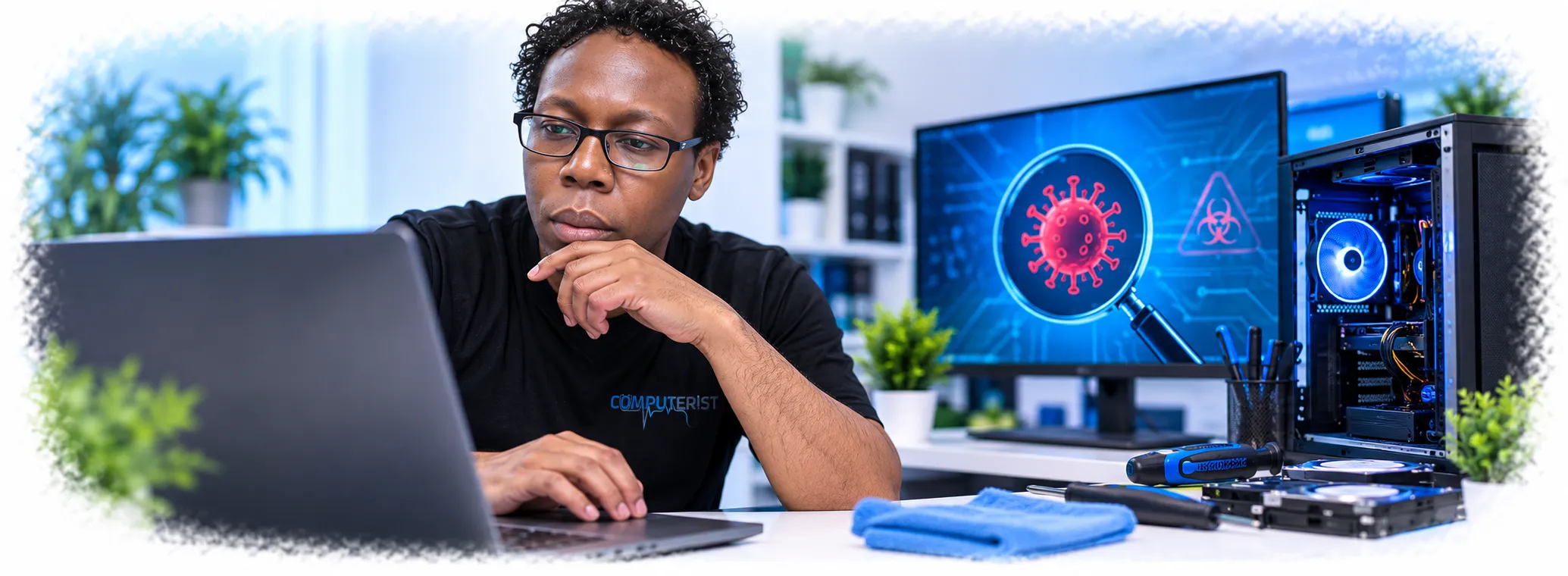
Virus & Malware Removal That Starts With Finding the Real Problem
A virus or malware problem isn’t always obvious. Slow performance, pop-ups, browser changes, crashes, unusual warnings or unexpected account activity can have different causes. Computerist can investigate what’s happening, remove malicious or unwanted software where appropriate, and help secure the computer afterwards.
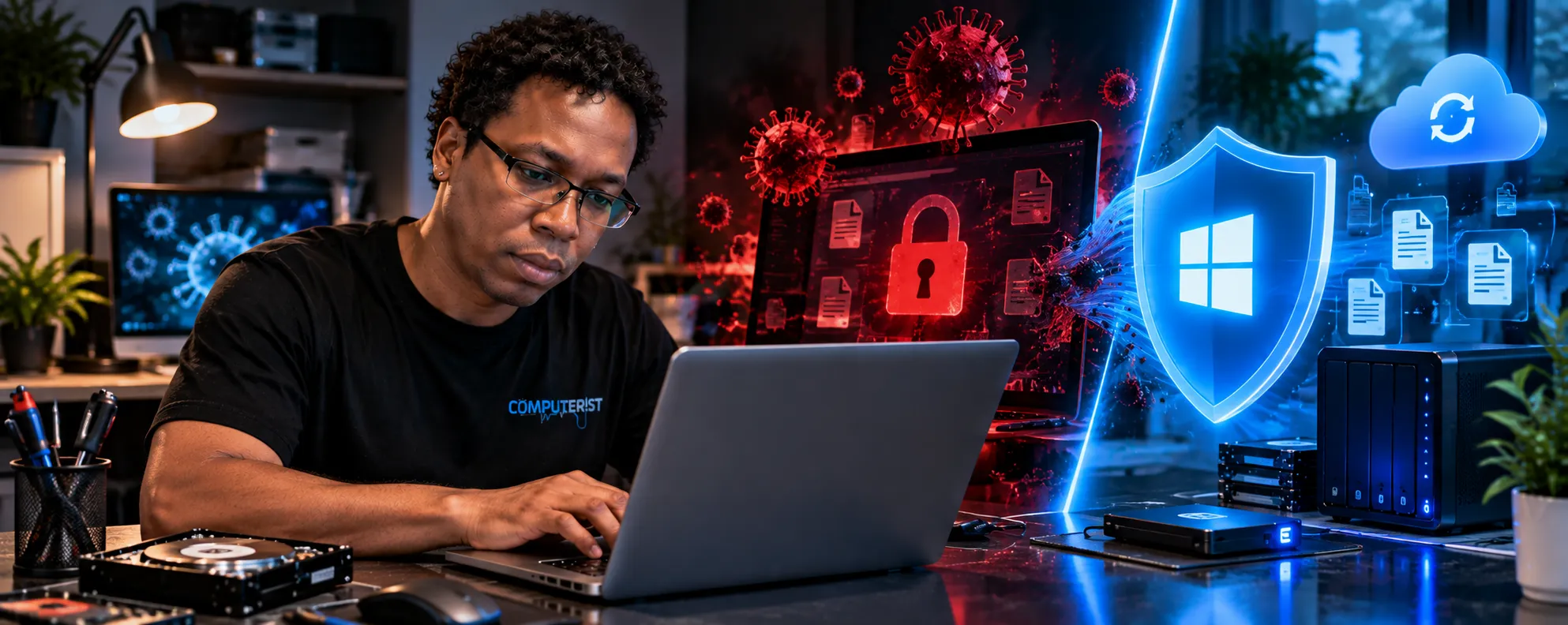
A computer that suddenly becomes slow, displays strange pop-ups, redirects your browser or starts behaving differently may have been infected with malware.But not every unusual computer problem is a virus.Computerist provides practical virus and malware removal for Windows PCs, laptops and other computers across Melbourne’s south-east.We’ll investigate what’s happening, identify the cause where possible, remove malicious or unwanted software where appropriate, and help you understand what you should do next.
Not every suspicious computer problem is caused by malware.
Malware doesn’t always announce itself.Sometimes the signs are obvious.Other times, the computer starts behaving differently.
Possible warning signs include:
Unexpected pop-ups
Browser redirects
Unwanted advertisements
Unknown applications
New browser extensions you didn’t install
Fake virus warnings
Unusual security messages
Homepage or search engine changes
Computer suddenly becoming very slow
Applications crashing unexpectedly
Files changing or becoming inaccessible
Antivirus alerts
Unusual network activity
Accounts behaving strangely
Programs starting without explanation
Security settings being changed
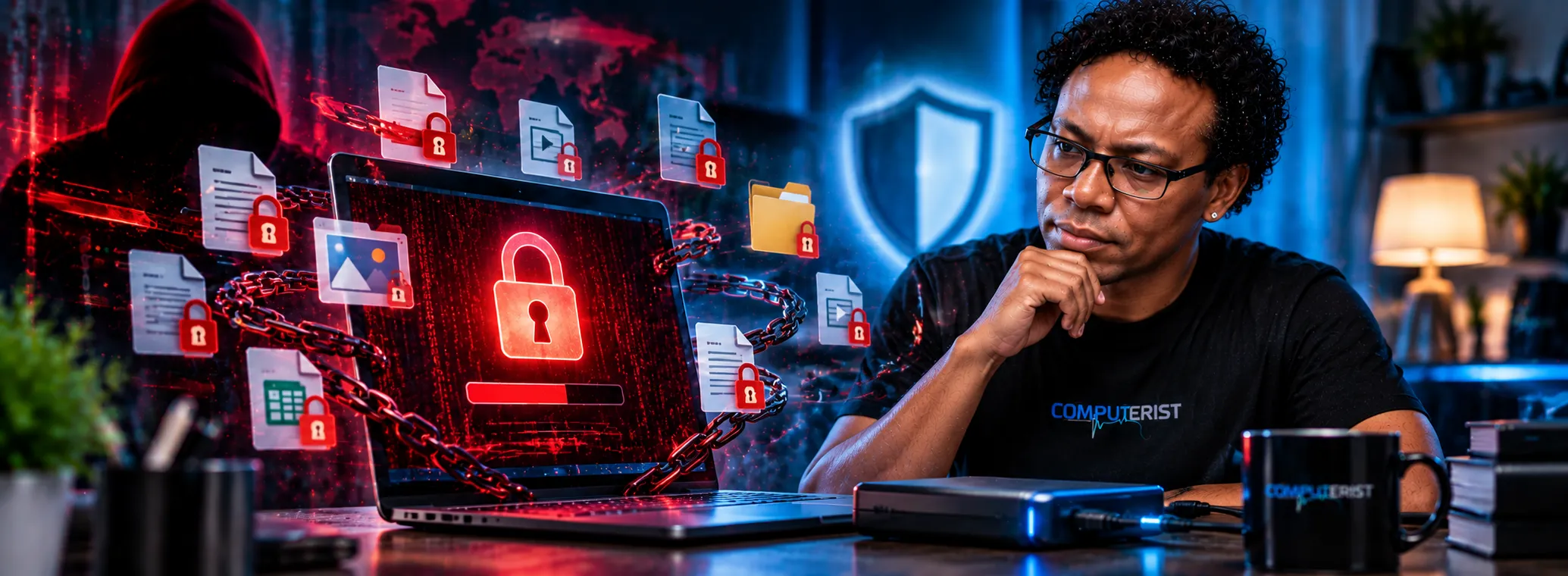
Ransomware messages
Suspicious login notifications
One symptom doesn’t automatically mean malware.
A failing SSD, damaged Windows installation, faulty RAM or poorly configured software can produce similar symptoms.That’s why diagnosis comes before removal.
We investigate the infection, remove malicious software where possible and check the system for signs of remaining threats. Where a system cannot be trusted, we’ll explain the safest recovery or reinstallation options.
What Is Malware?
Malware is a general term for malicious software designed to interfere with a computer, steal information, gain unauthorised access, damage files or perform other unwanted actions.It includes several different categories.
Viruses
Traditional viruses are malicious programs capable of spreading or modifying other files.
Trojans
Trojans disguise themselves as legitimate software or files to trick users into installing or running them.
Spyware
Spyware can be designed to monitor activity or collect information without the user’s knowledge.
Ransomware
Ransomware can encrypt or otherwise restrict access to files and demand payment.
Adware
Some unwanted software aggressively displays advertisements or changes browser behaviour.
Browser Hijackers
These can alter search engines, homepages or browser settings and redirect users to unwanted websites.
Potentially Unwanted Applications
Not every unwanted application is technically malware. Some software is bundled, overly intrusive or installed without the user fully understanding what it does. The distinction matters because the appropriate response depends on what is actually present.
What Should You Do If You Think You’ve Been Infected?
If you suspect malware, don’t panic and don’t start deleting random files.
The safest response depends on the circumstances.
If the computer is behaving strangely
Stop entering sensitive information until you understand what’s happening.
If you see a suspicious pop-up
Don’t automatically call the telephone number displayed in the pop-up.
Fake security warnings often use alarming messages designed to make you act without thinking.
If you believe an account has been compromised
Use a known-clean device where possible to change important passwords and secure the affected accounts.
If ransomware may be involved
Disconnect the affected computer from networks where practical and avoid attempting random repairs.
If important files are involved
Don’t reinstall Windows or start deleting files before considering whether the data needs to be preserved.
If you’re unsure
Contact Computerist and explain what you’re seeing.
One particularly common problem isn’t a virus at all.It’s a scam.You may see a webpage claiming:“Your computer is infected!”or:“Microsoft Security Alert!”or:“Call this number immediately.”These warnings are often designed to frighten you into calling a scammer, installing remote-access software or paying for a completely unnecessary service.
Be careful.
Microsoft, Apple and reputable security providers don’t normally require you to call an unknown telephone number displayed in a random browser pop-up.If you’re unsure whether a warning is legitimate, don’t call the number shown on the screen.Close the browser if possible and seek independent assistance.
Browser Pop-Ups & Redirects
Constant pop-ups and browser redirects are among the most common reasons people suspect they’ve been infected.Potential causes include:
Malicious extensions
Unwanted applications
Browser notification abuse
Adware
Browser configuration changes
Compromised websites
Malware
Sometimes the problem can be resolved by removing an unwanted extension or resetting browser settings.Other times, the browser behaviour is a symptom of something deeper.
We’ll investigate before assuming the cause.
Slow Computer After a Malware Infection
Malware can consume system resources, interfere with applications and generate unusual network activity.
However, a slow computer isn’t automatically infected.
Other causes include:
Failing storage
Low memory
Windows problems
Too many startup applications
Overheating
Ageing hardware
Background applications
That’s why our approach is to diagnose rather than blame every performance problem on malware.
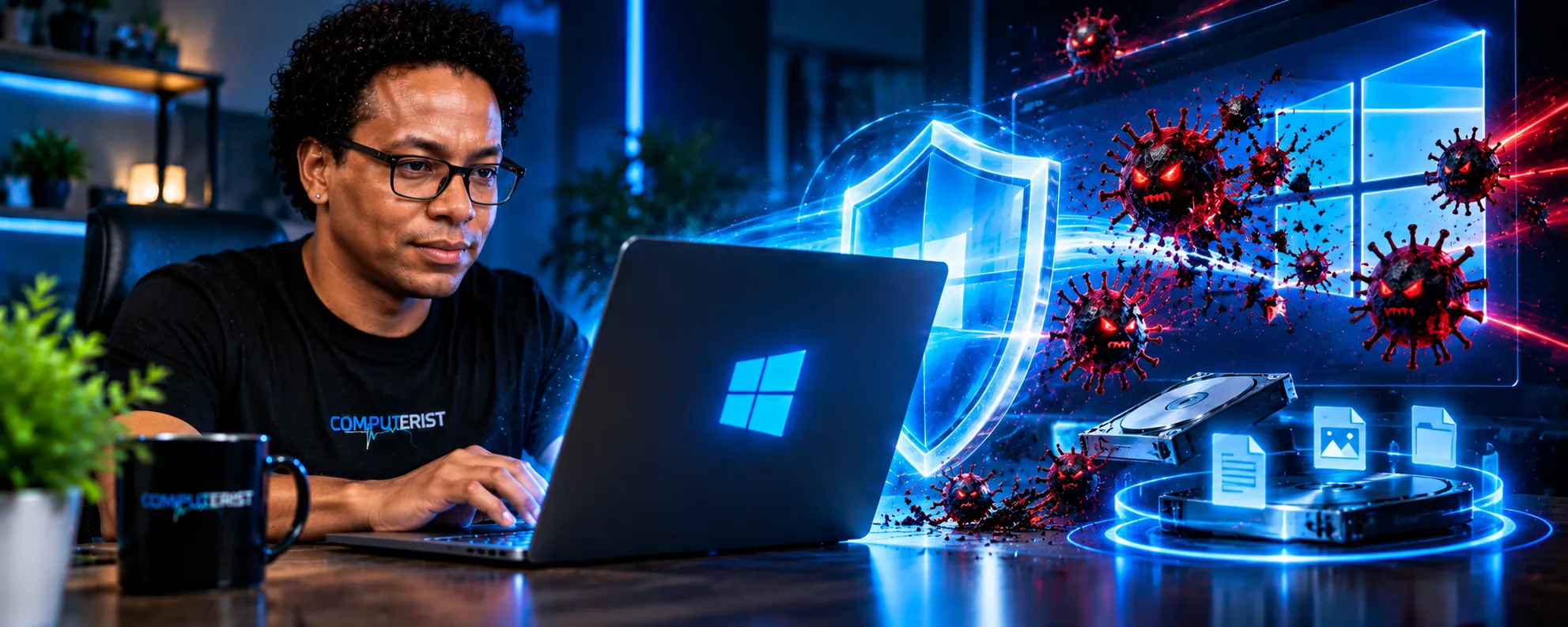
Windows computers remain common targets for malicious software.
Computerist can investigate Windows systems experiencing:
Suspicious pop-ups
Browser hijacking
Unwanted software
Antivirus alerts
Suspicious processes
Performance problems
Unexpected applications
Security configuration changes
Other unusual behaviour
Depending on the situation, remediation may involve removing malicious or unwanted software, restoring appropriate settings, checking security controls and reviewing the system for other signs of compromise. For practical guidance on preventing and protecting against malware, see the Australian Cyber Security Centre — How to protect yourself from malware
Malware on a Mac
Macs aren’t immune to malicious or unwanted software.
Mac users can encounter:
Browser hijackers
Malicious extensions
Fake security alerts
Unwanted applications
Adware
Credential theft attempts
Phishing
Other unwanted behaviour
A suspicious Mac should be assessed rather than assumed to be immune.
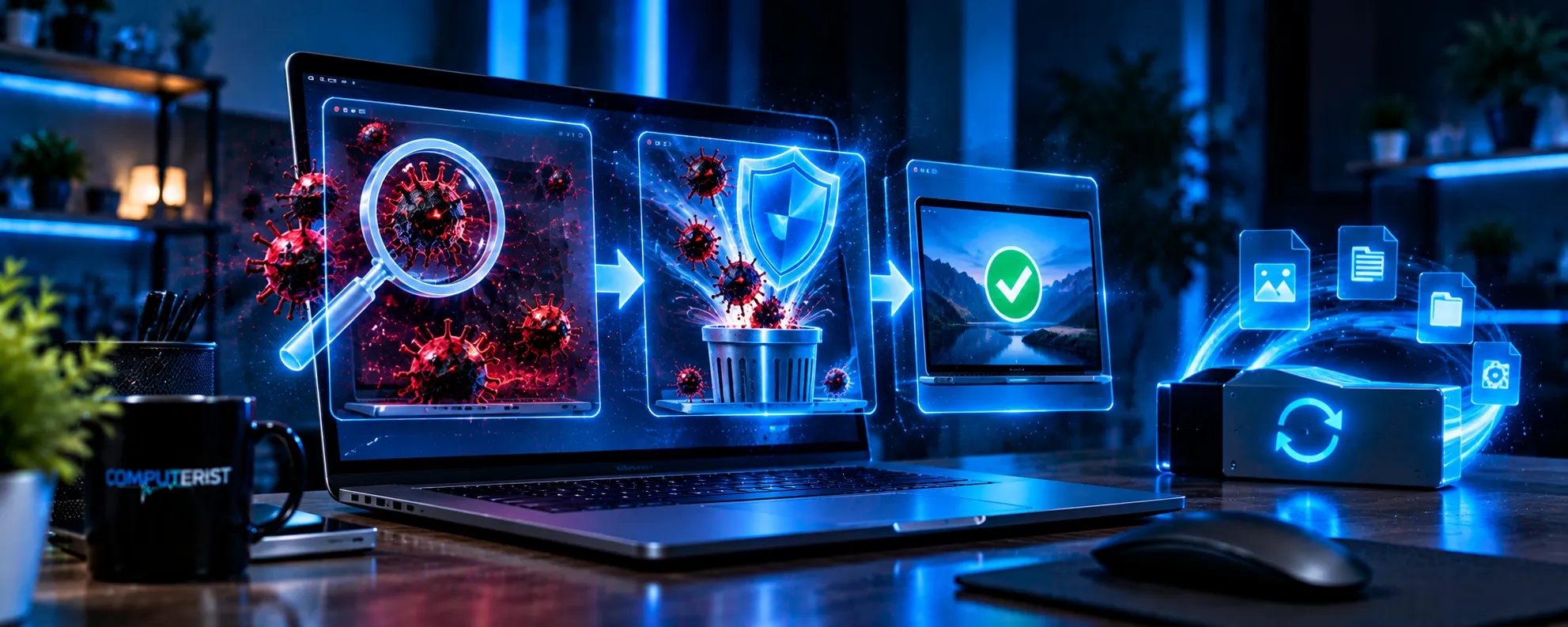
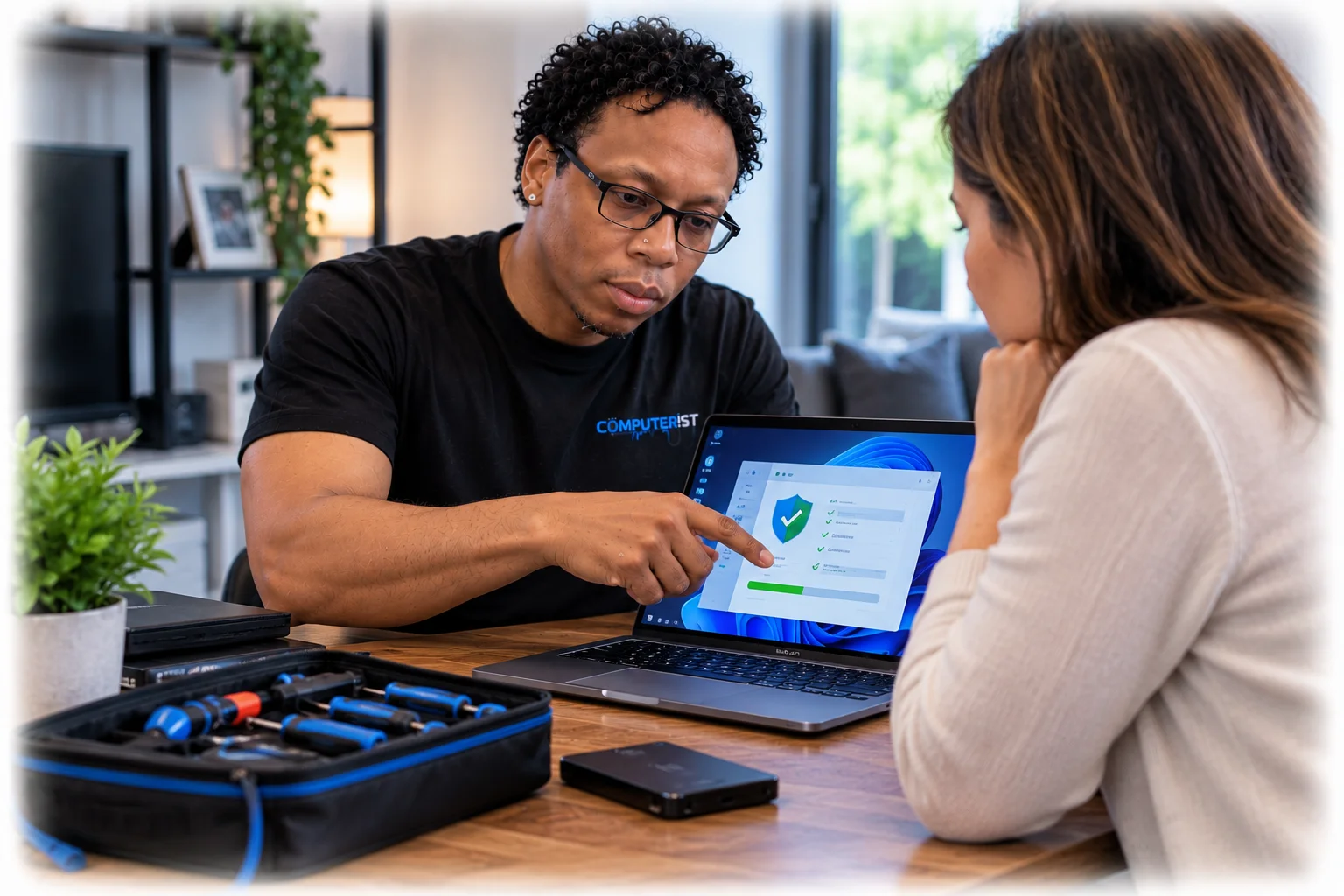
Removing malicious software is only part of the job. We also look at how the problem occurred, whether Windows and security software are up to date, whether suspicious applications or browser extensions remain, and whether your accounts or data may need additional attention.
Malware removal should be more than:
“Run an antivirus scan.”
A scan can be useful, but it is only part of the process.
1. We listen to what happened
When did the problem begin?
What changed?
What did you click, install or download?
What warnings appeared?
What accounts were being used?
These details can help identify what we’re dealing with.
2. We assess the computer
We’ll investigate the system for signs of malicious or unwanted software and determine whether the symptoms could have another explanation.
3. We identify the problem
Where possible, we’ll establish:
What is causing the behaviour
Whether malware appears to be present
Whether unwanted software is involved
Whether Windows itself is damaged
Whether hardware may be contributing to the problem
4. We remove or remediate the problem
Where appropriate, we’ll remove malicious or unwanted software and restore affected settings.
The exact remediation depends on the type and severity of the problem.
5. We consider account security
Removing malware from a computer doesn’t automatically mean compromised accounts are safe.
If credentials may have been exposed, you may need to:
Change passwords
Enable MFA
Review account activity
Sign out of other sessions
Check recovery information
Review suspicious email activity
For Microsoft 365 environments, this can become particularly important.
The goal isn’t simply to make the pop-up disappear.
We want to determine whether the system is behaving normally and whether further security measures are appropriate.
What If Your Password Was Stolen?
Malware and phishing can sometimes result in stolen credentials.If you believe your password may have been exposed, don’t assume removing the malware fixes the account.The account itself may still be compromised.Depending on the service involved, appropriate actions may include:
A compromised computer and a compromised Microsoft 365 account are two different problems.
A user may have:
A malware infection on their computer.
A stolen Microsoft 365 password.
A compromised Microsoft 365 session.
A phishing attack that never involved malware at all.
These situations require different responses.
Computerist has experience working with Microsoft 365 environments and can help investigate the wider situation when a device infection may have affected business accounts.
Ransomware is one of the more serious forms of malware.
It can make files inaccessible by encrypting them or otherwise restricting access.
Possible warning signs include:
Files suddenly becoming unreadable
File extensions changing
Ransom notes
Unusual desktop messages
Multiple computers becoming affected
Network shares becoming inaccessible
If you suspect ransomware:
Stop and isolate the affected systems where practical.
Don’t simply keep using the computer.
Don’t immediately pay a ransom.
Don’t start randomly deleting encrypted files.
And don’t assume that restoring one computer will solve a business-wide compromise.
For businesses, ransomware can require a broader incident-response and disaster-recovery process.
What To Do If You Suspect Ransomware?
If files have suddenly become inaccessible, renamed or encrypted, stop using the affected computer and avoid making unnecessary changes. Computerist can help assess what has happened and identify the practical next steps for containment, recovery and restoring normal operation.
When Should Windows Be Reinstalled?
Sometimes malware remediation can be performed without reinstalling Windows.Other situations may justify a clean installation.
A reinstall may be considered when:
The system is severely compromised
Malware cannot be confidently removed
Windows has been significantly damaged
The machine has persistent unexplained behaviour
A clean environment is the safest practical option
But reinstalling Windows has consequences.Before doing so, we need to consider:
Important files
Backups
Applications
Licences
Browser information
Microsoft 365
User profiles
Drivers
Recovery options
A clean installation should be a considered decision, not a reflex.
Don’t worry about using the correct technical terminology.
Describe what you see.
2. We investigate
We’ll determine whether the problem appears to be malware, unwanted software, a browser issue, Windows or something else.
3. We assess the risk
If there are indications that accounts, data or other devices may be affected, we’ll explain what that means.
4. We remediate the device
Where appropriate, we’ll remove malicious or unwanted software and restore affected settings.
5. We discuss account security
If credentials may have been exposed, we’ll explain the steps you should take.
6. We help prevent recurrence
Where appropriate, we’ll recommend practical security improvements.
How Much Does Virus & Malware Removal Cost?
The cost depends on the nature of the problem.
A browser hijacker can be very different from a deeply compromised Windows installation.
Factors can include:
Severity of the infection
Number of issues identified
Condition of Windows
Data requirements
Account compromise
Whether reinstallation is necessary
Additional security work
We prefer to understand the problem before recommending significant work.
Why Choose Computerist?
Real-World IT Experience
Straightforward Explanations
Practical Security Advice
We don’t assume every strange computer problem is malware
That’s important.
A failing SSD can look like malware.
A damaged Windows installation can look like malware.
A browser extension can look like malware.
A legitimate security warning can look frightening.
We investigate before jumping to conclusions.
We understand the wider IT environment
Computerist’s experience extends beyond individual home computers.
We have experience with:
Microsoft 365
Endpoint management
Networking
Cybersecurity
Business IT
Cloud services
Security platforms
Backup and disaster recovery
That matters when an infection involves more than one computer or potentially affects business accounts.
We explain what happened
You shouldn’t leave a malware-removal appointment wondering:“What actually happened?”We’ll explain what we’ve found and what you should do next.
No Fix, No Fee*
*Where applicable, Computerist operates a No Fix, No Fee approach.The exact conditions depend on the service, so we’ll explain them before proceeding.
Our Experiences Matter!
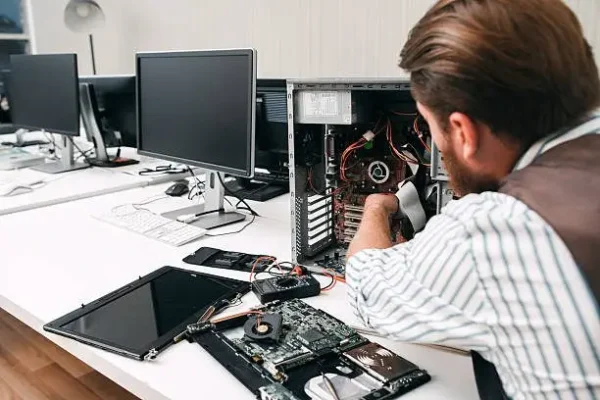
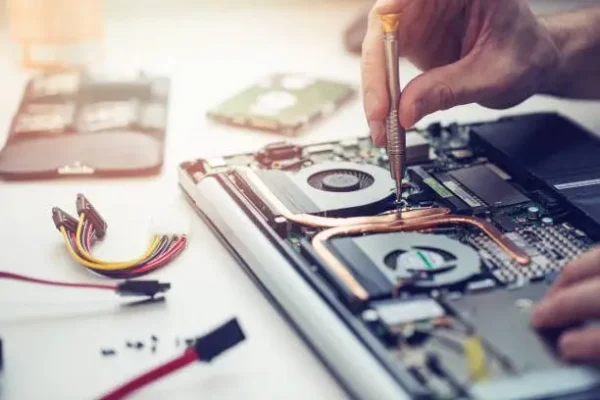
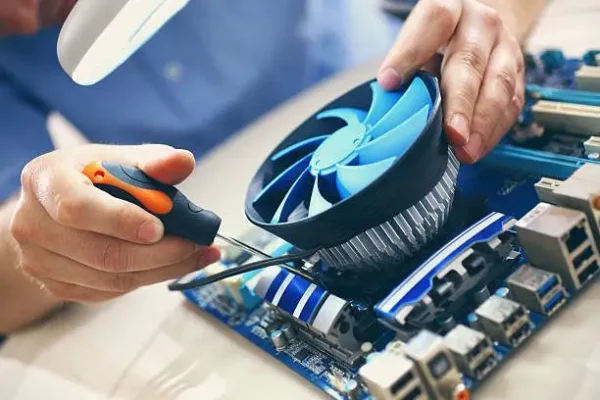
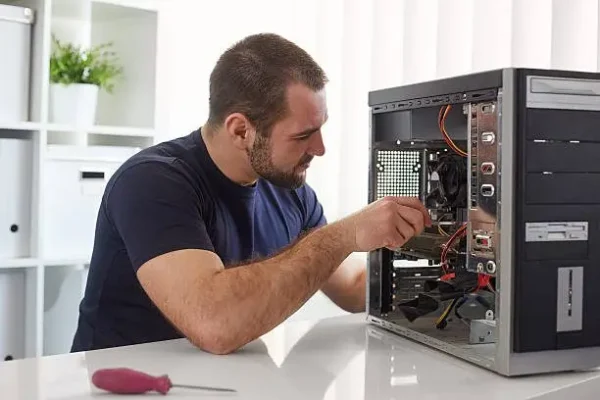
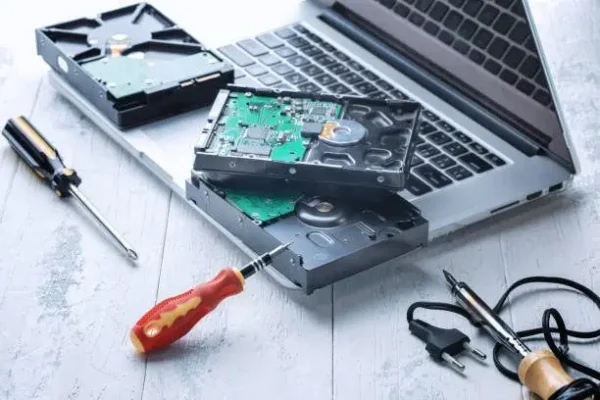
A professional Computerist technician working on an open desktop computer in a hands-on repair environment, surrounded by laptops, storage drives, RAM, tools and other computer components.
We understand the difference between fixing a computer and protecting its data
When a computer fails, the instinct is often to get the computer working again as quickly as possible.But if the computer contains important files, getting it working is not necessarily the first priority.The first priority may be protecting the information stored on it.That distinction matters.
We explain the situation honestly
Data recovery can be stressful.
You don’t need someone making unrealistic promises.
We’ll explain:
What appears to have happened
What can potentially be recovered
What risks exist
What options are available
Whether specialist recovery may be appropriate
What the likely next steps are
Then you can make the decision.
Local Virus & Malware Removal in Melbourne’s South-East
Serving Melbourne’s South-East
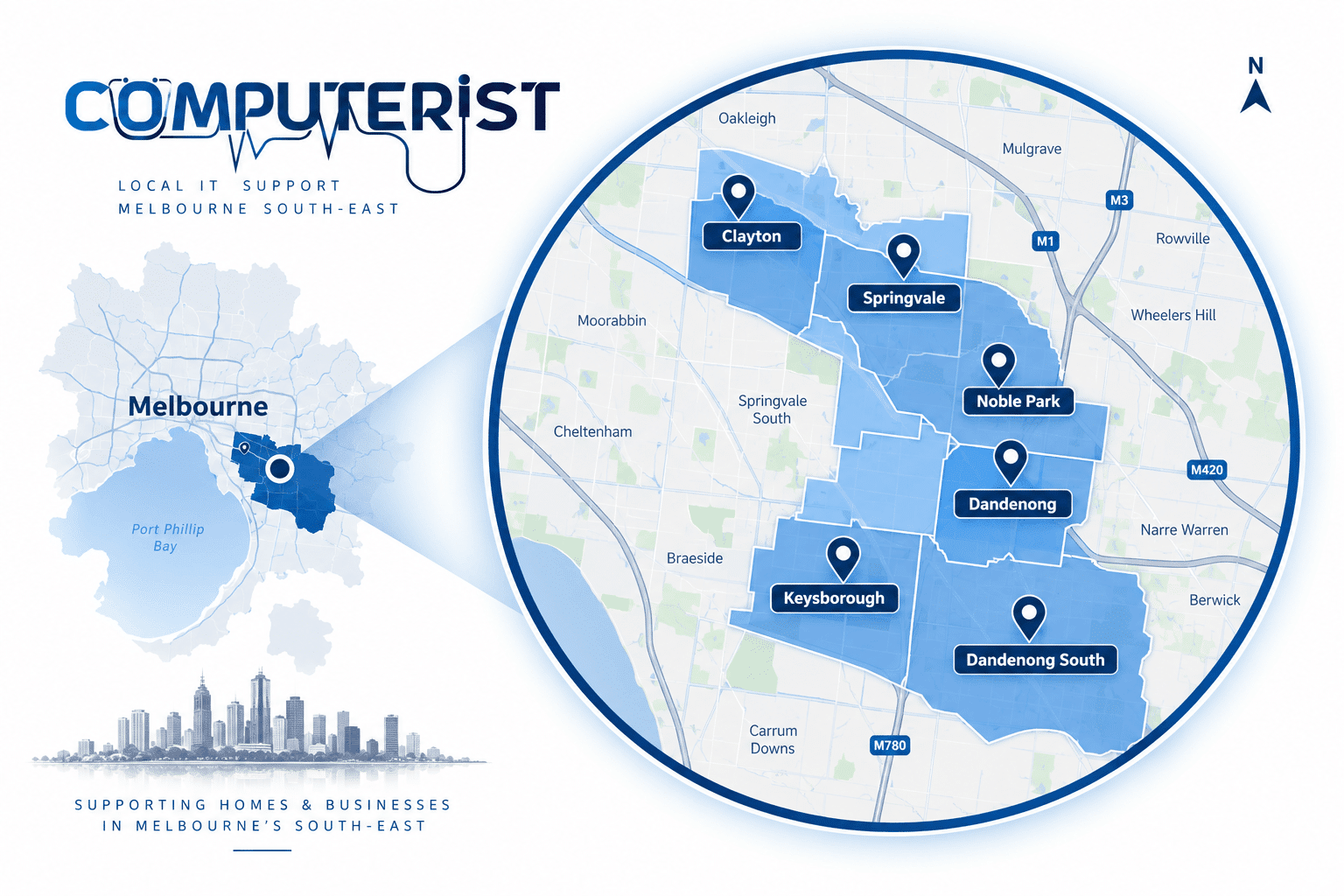
Computerist provides Virus & Malware Removal across Melbourne’s South-East, including Noble Park,Springvale, Dandenong, Clayton, Keysborough & Dandenong South. We may also support surrounding south-eastern suburbs where the service requirement is suitable.
If your computer is showing suspicious behaviour, unwanted pop-ups, unusual warnings, browser changes or other signs of a possible infection, Computerist can investigate what’s happening, explain what we’ve found and help you work out the safest next step.
We charge an hourly rate for the time spent working on your technology. If we’re unable to resolve the problem, you won’t be charged for the diagnostic or travel component.
*Some exclusions and conditions may apply. We’ll explain applicable charges before work begins.
There isn’t one symptom that proves a computer is infected. Pop-ups, redirects, unknown software and unusual behaviour can indicate malware, but similar symptoms can also be caused by hardware or software problems. Diagnosis is important.
No. Slow performance can be caused by failing storage, insufficient memory, Windows problems, overheating, background applications and many other issues.
Be very cautious. Fake technical support warnings often use alarming messages and phone numbers to trick people into contacting scammers. Don’t provide remote access or payment details simply because a browser pop-up tells you to.
It may be appropriate, particularly if you believe credentials could have been exposed. Use a known-clean device where possible and enable MFA on important accounts.
It shouldn’t necessarily, but every situation is different. If important data is involved, we consider data preservation before undertaking significant remediation.
Stop and isolate affected systems where practical. Don’t randomly delete files or continue using compromised systems. Businesses should consider the possibility of a broader compromise and involve appropriate incident response and recovery resources.
Malware and phishing can contribute to compromised Microsoft 365 credentials and sessions. Removing malware from the computer doesn’t automatically secure a compromised Microsoft 365 account.


 Virus & Malware Removal That Starts With Finding the Real Problem
  A virus or malware problem isn’t always obvious. Slow performance, pop-ups, browser changes, crashes, unusual warnings or unexpected account activity can have different causes. Computerist can investigate what’s happening, remove malicious or unwanted software where appropriate, and help secure the computer afterwards.
 Is Your Computer Infected?
 Unexpected pop-ups
 What Is Malware?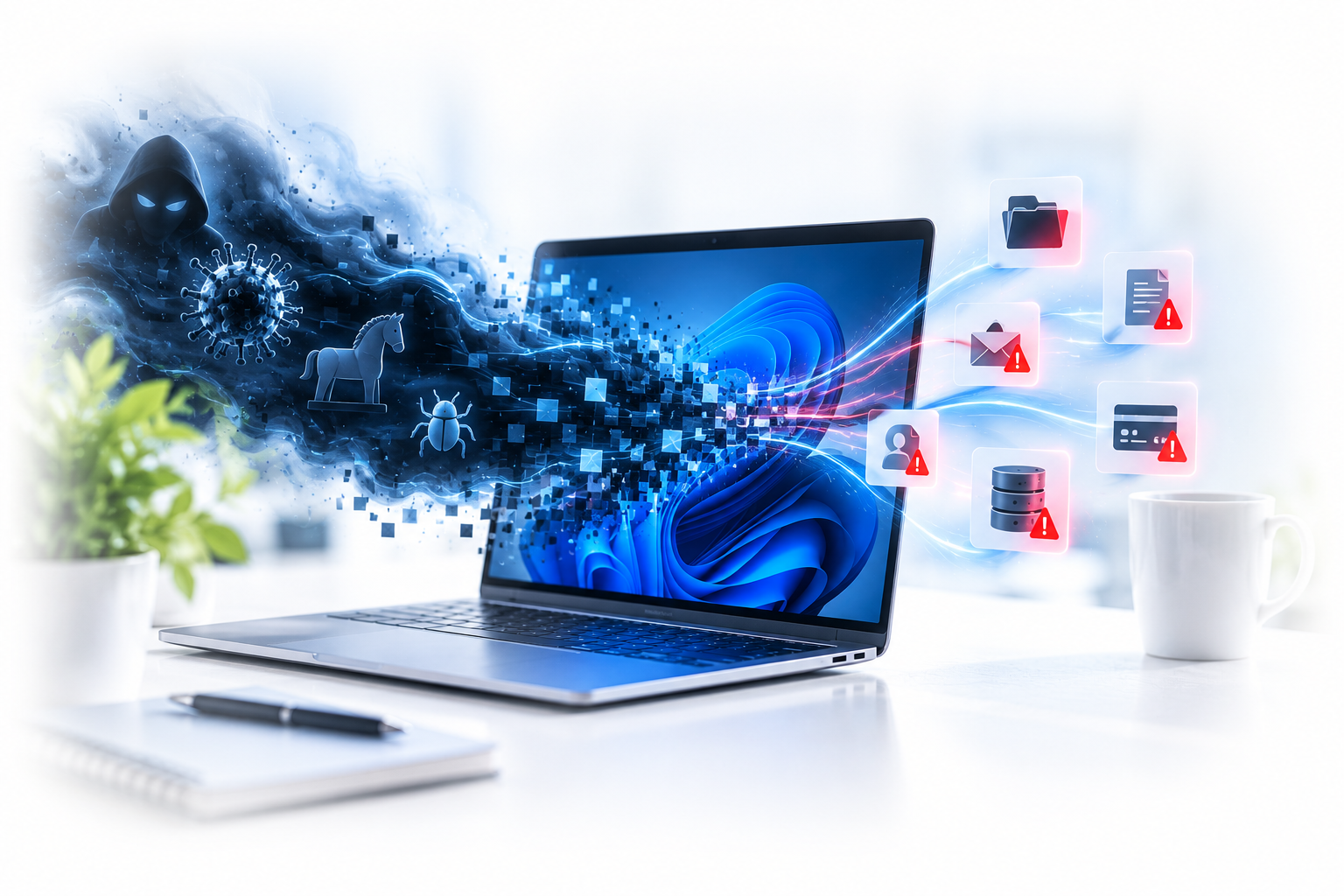




 Slow Computer After a Malware Infection
 Virus & Malware Removal for Windows

 Malware on a Mac
 What Happens During Malware Removal?
 What If Your Password Was Stolen?


 Ransomware & Encrypted Files
 When Should Windows Be Reinstalled?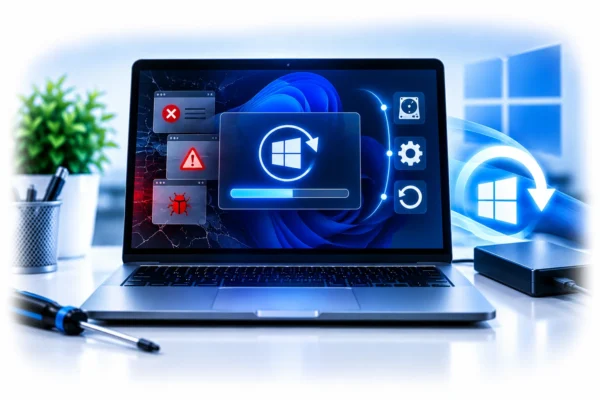
 What About Antivirus Software?
 Malware Removal for Small Businesses
 Windows Startup Problems
 Preventing the Next Infection







 What Should You Do If You Think You’ve Been Infected?


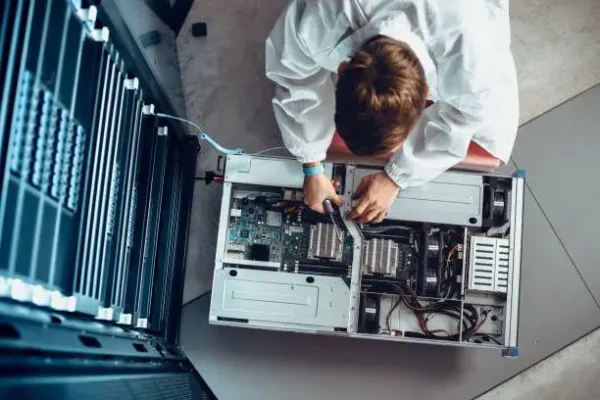

 If your computer is showing suspicious behaviour, unwanted pop-ups, unusual warnings, browser changes or other signs of a possible infection, Computerist can investigate what’s happening, explain what we’ve found and help you work out the safest next step.